Where Is the PrtSc Button on the Keyboard?

The PrtSc (Print Screen) key is used to take screenshots on a computer. It allows you to quickly capture the screen and save important information. However, many users — especially beginners — wonder where exactly this button is located on the keyboard.
The position of the PrtSc key may vary slightly depending on the type of keyboard, but the general principle remains the same.
What Is the PrtSc Button?
The PrtSc button is a key designed for taking screenshots. When pressed, it captures the screen and sends the image to the system. Depending on the key combination used, you can capture the entire screen, the active window, or a selected area.
The key label may appear in different forms:
PrtSc
PrtScn
Print Screen
PrtSc SysRq
All of these labels perform the same function.
Where Is the PrtSc Button on a Standard Keyboard?
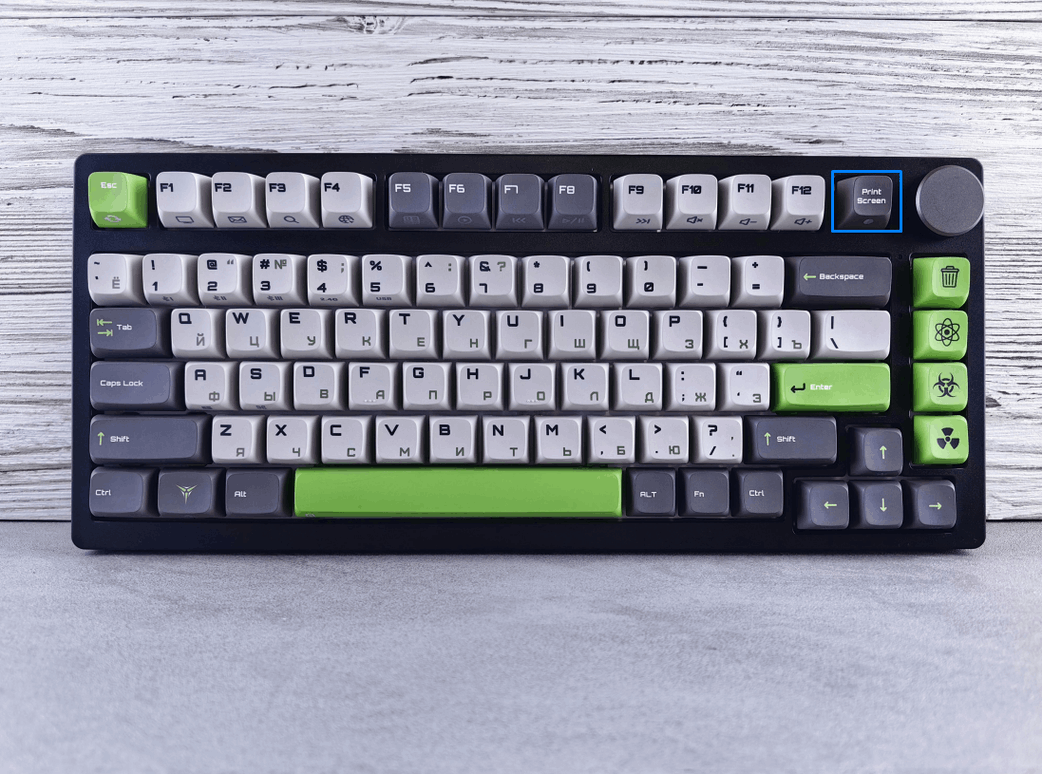
On a full-size keyboard, the PrtSc key is usually located in the upper-right section, above the numeric keypad. It is most often placed near the Insert, Home, and Page Up keys, or next to Scroll Lock and Pause/Break.
The key is typically in the top row and may have a small label, which makes it easy to overlook at first glance.
Where to Find PrtSc on a Compact Keyboard or Laptop
On compact keyboards and laptops, the PrtSc key is usually located in the top row, near the Delete, F12, or Backspace keys.
Sometimes the Print Screen function is combined with another key. In this case, the PrtSc label may be printed in smaller text or in a different color. To take a screenshot, you may need to press Fn + PrtSc.
What to Do If You Cannot Find the PrtSc Button
If you cannot immediately locate the PrtSc key:
carefully check the upper-right area of the keyboard
look for the labels Print Screen or PrtSc
examine the top row near Delete and F12
pay attention to keys with secondary labels
Conclusion
The PrtSc button is usually:
located in the upper-right part of the keyboard
positioned near navigation or function keys
labeled in different ways but performing the same function
If you want to simplify working with screenshots and avoid depending on the physical location of the key, SleekShot can be a convenient alternative to the standard screen capture method.


