Keyboard Shortcuts for Screenshots on a PC: A Fast and Convenient Way
A screenshot is a quick way to capture an image from your computer screen at the right moment. It is essential when you need to clearly show an error, explain a sequence of steps, save the result of your work, or share information with someone else. You can take a screenshot using standard system tools — with the keyboard. And if you want to work faster and avoid unnecessary steps, it is worth considering the SleekShot application.
Print Screen — Capture the Entire Screen
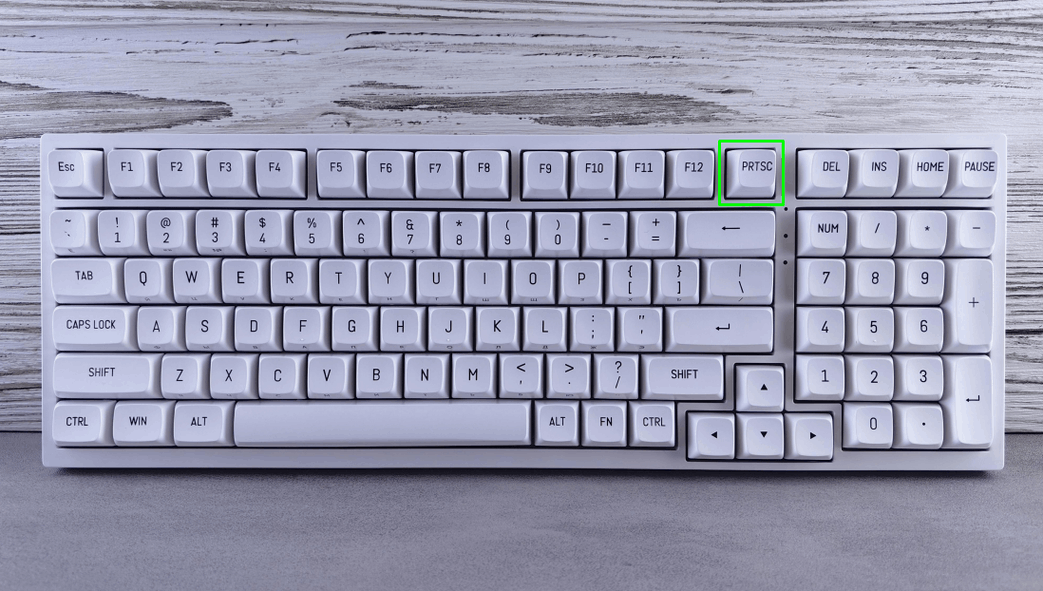
Pressing the Print Screen (Prt Sc) key captures the entire screen. The image is not saved automatically but copied to the clipboard. After that, you can paste it into a text document, email, or chat using the Ctrl + V shortcut. This method is suitable when you need to capture the whole screen.
Alt + Print Screen — Only the Active Window
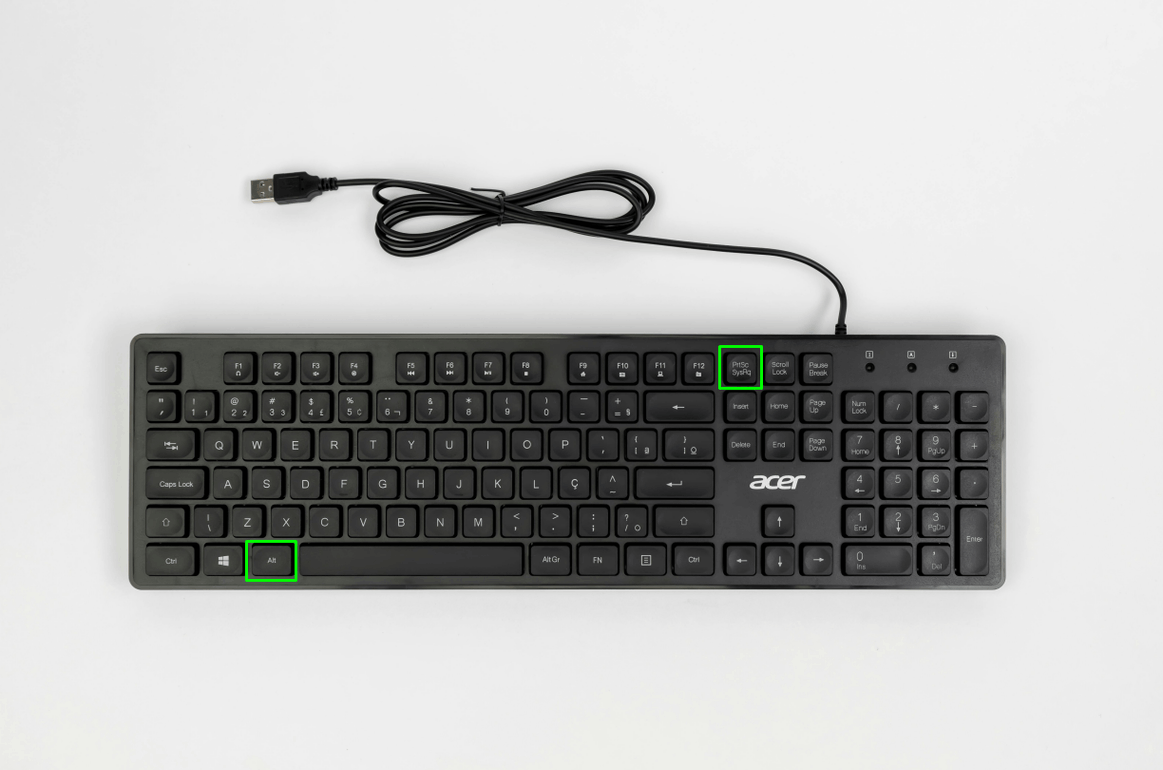
The Alt + Print Screen combination captures only the active window, without including other desktop elements. This is convenient when you need to show a specific program or dialog box. As in the previous case, the image is copied to the clipboard and ready to be pasted.
Win + Print Screen — Automatic Saving
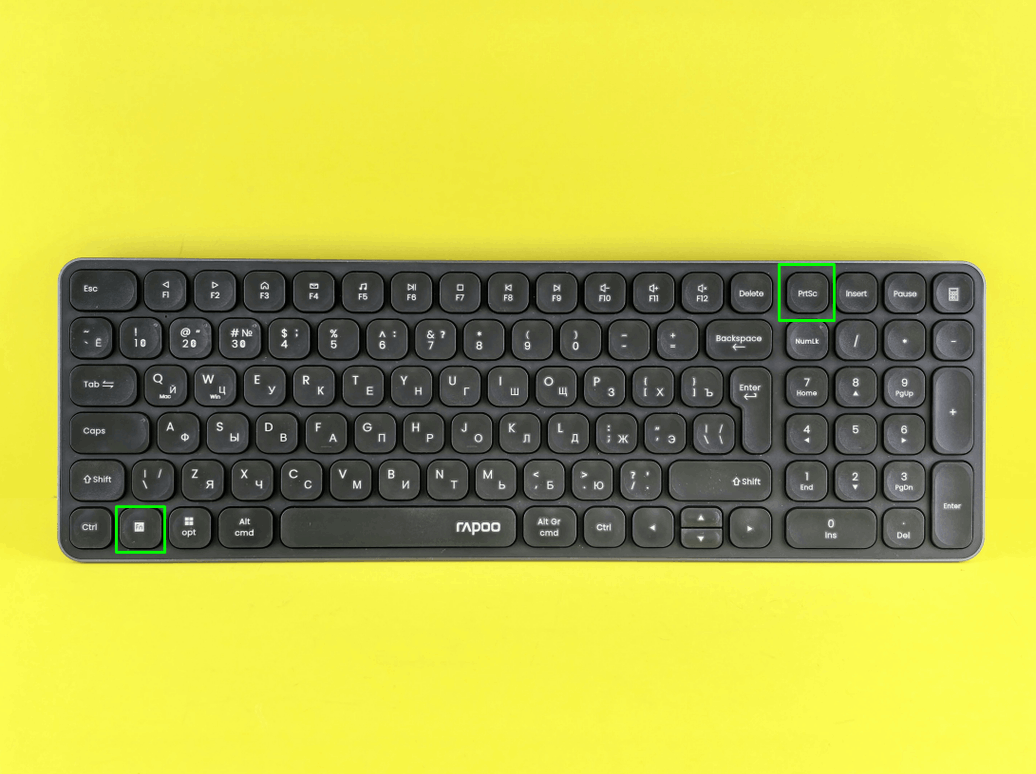
If you want to immediately get a ready-to-use file, use Win + Print Screen. In this case, the system automatically saves a screenshot of the entire screen. It usually appears in the Pictures → Screenshots folder, and a brief screen dimming confirms that the screenshot was successfully taken.
Win + Shift + S — Select a Screen Area
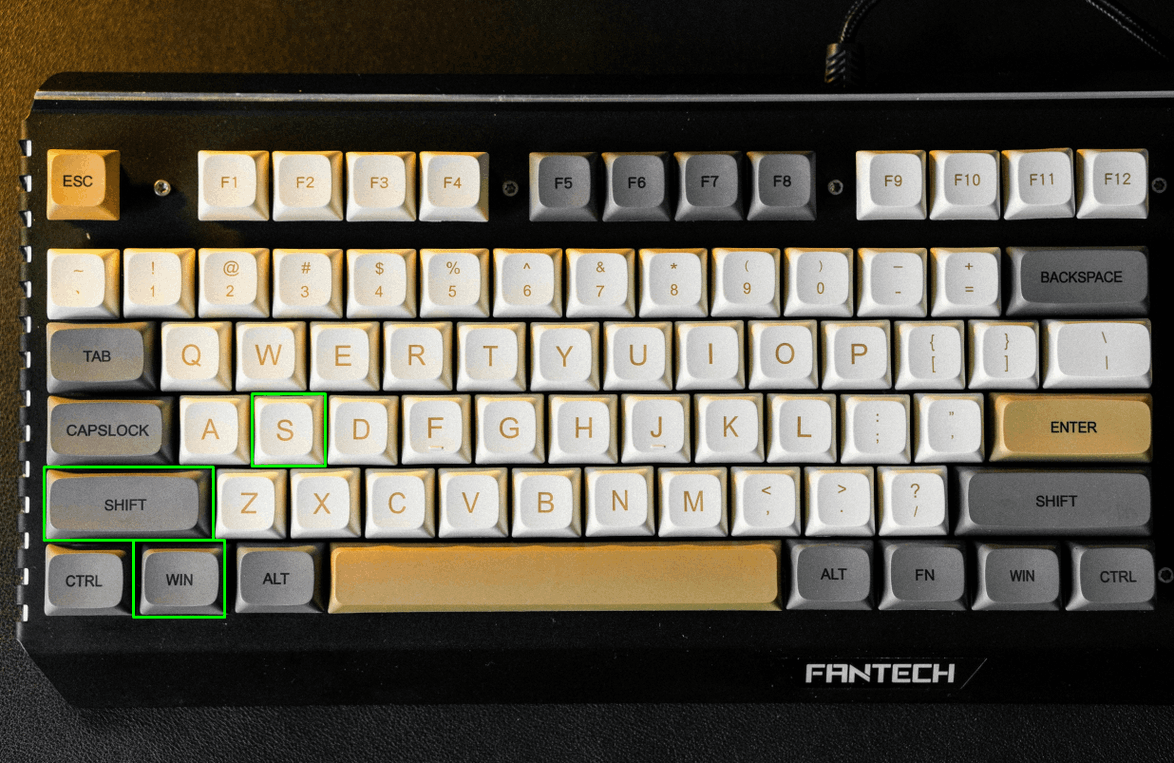
For capturing a specific part of the screen, use Win + Shift + S. After pressing the keys, you can manually select the area you want to save. The captured fragment is copied to the clipboard, from where it can easily be pasted into any document or message.
SleekShot — A Convenient Screenshot Assistant
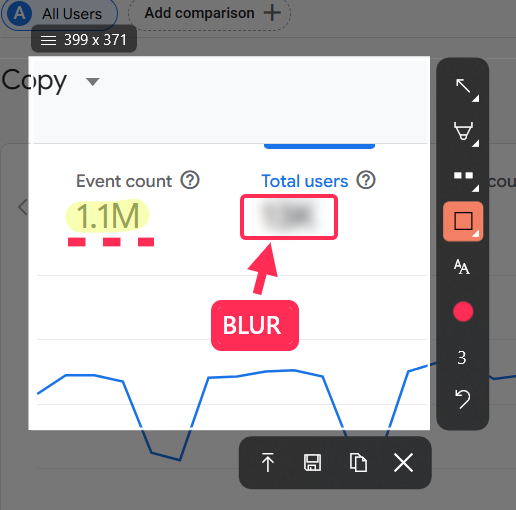
Standard keyboard shortcuts do not suit everyone: sometimes you need to manually paste images, save files, and open editors. SleekShot solves these tasks within a single window. With it, you can:
take screenshots using convenient hotkeys
capture the entire screen, individual windows, or selected areas
immediately edit the image, add notes and highlights
quickly save or share finished screenshots
The application is especially convenient for users who want a simple and clear result without unnecessary actions.
Conclusion
Taking screenshots with the keyboard is fast and accessible:
Print Screen — entire screen
Alt + Print Screen — active window
Win + Print Screen — automatic saving
Win + Shift + S — selected area
For more comfortable and faster screenshot work, SleekShot helps save time and lets you instantly get ready-to-use images for work, study, or communication.


