Keyboard Shortcut to Start Screen Recording on a PC

Screen recording is a convenient way to show how something works on a computer, record a tutorial, an online lesson, a presentation, or save an important moment. Many users don’t know that you can start screen recording using a keyboard shortcut—without installing complex software or spending time on lengthy setup.
Let’s look at which keyboard shortcuts are used in Windows and how to simplify screen recording with SleekShot.
Standard Keyboard Shortcut for Screen Recording in Windows
Windows has a built-in screen recording feature that is launched using the following shortcut:
Win + Alt + R
After pressing this combination:
screen recording starts;
the system captures what is happening in the active window;
the recording continues until you press the same shortcut again.
This is the fastest way to start recording without opening menus or searching for the right buttons.
What You Should Know About the Built-in Screen Recorder
Although the Win + Alt + R shortcut is convenient, it has several limitations. Recording usually:
works only with the active window;
is not always suitable for recording the desktop;
offers limited quality and format settings.
Because of this, the standard method is suitable for simple tasks but not always convenient for regular use.
Why Hotkeys Are Convenient for Screen Recording
Using keyboard shortcuts allows you to:
start recording instantly;
avoid distractions from menus and settings;
eliminate unnecessary mouse clicks;
capture the needed moment faster.
This is especially important when recording tutorials or demonstrating actions in real time.
Screen Recording with SleekShot
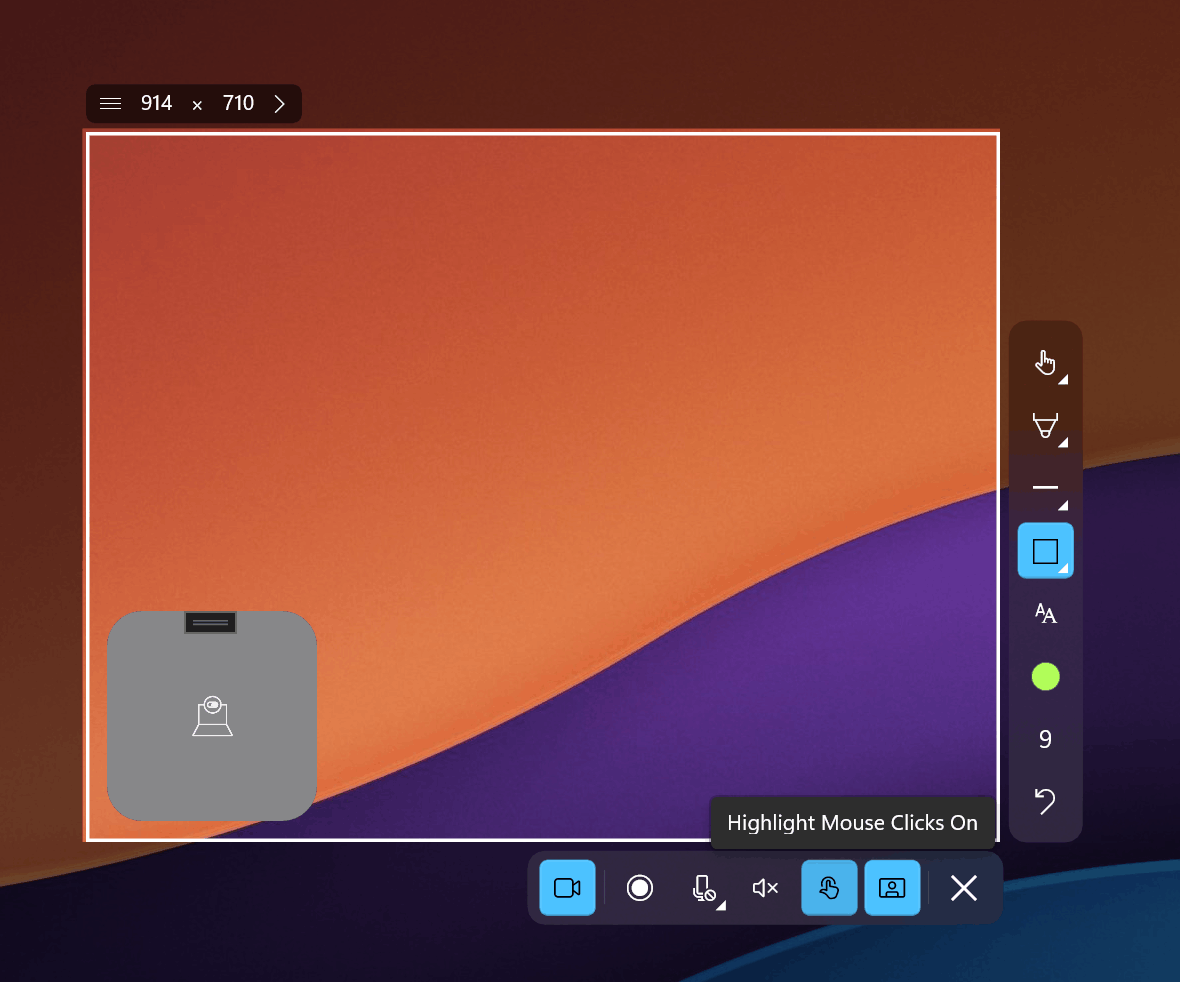
If you want more convenience and control, SleekShot is worth considering. The app allows you to start screen recording using customizable keyboard shortcuts, without the limitations of standard Windows tools.
With SleekShot, you can:
start screen recording with a single hotkey;
choose what to record: full screen, a window, or a selected area;
get high-quality recordings without complex setup;
work quickly and intuitively, even as a beginner.
You decide which keyboard shortcut starts the recording, making the process as convenient as possible.
When It’s Better to Use SleekShot
SleekShot is especially useful if:
you frequently record screen videos;
you need to start and stop recording quickly;
quality and stability are important to you;
you don’t want to remember the standard limitations of Windows.
The app helps you focus on the task rather than on technical details.
Conclusion
To start screen recording on a PC, you can use:
the standard Win + Alt + R shortcut in Windows;
more flexible and convenient hotkeys in SleekShot.
If you need a simple, fast, and easy-to-use screen recording solution with keyboard shortcut control, SleekShot is an excellent choice for both beginners and experienced users.


