How to Take a Screenshot with One Button on Windows

A quick screenshot means you don’t have to remember complex key combinations or open additional menus. Many users want to capture the screen with a single button press, especially if screenshots are used regularly for work, learning, instructions, or communication. On Windows, this is absolutely possible in several ways.
The Standard Screenshot Button in Windows
The most well-known option is the PrtSc key. A single press saves the screen image to the clipboard or, in some cases, directly to the Pictures folder. However, this method has limitations: it’s not always clear where the file is saved, there is no automatic editing, and on some keyboards the PrtSc key may not be available at all.
In addition, the standard button lacks flexibility — you cannot choose the format, save location, or instantly add annotations.
Reassigning a Single Button
In Windows, you can configure the system so that a screenshot is created with one convenient key or action. This is most often done using dedicated screenshot applications. They allow you to assign a single key for a specific scenario: capturing a region, a window, or the entire screen.
This is especially useful if:
. The PrtSc key is missing or неудобна
. You need screenshots of only one specific type
. Maximum speed is important
. You take dozens of screenshots every day
Screenshot Applications — The Most Convenient Way
Specialized applications handle the entire screenshot process. The user only needs to press one preselected button — everything else happens automatically.
One such solution is SleekShot — a Windows screenshot application designed for fast and convenient screen capture.
How to Take a Screenshot with One Button in SleekShot
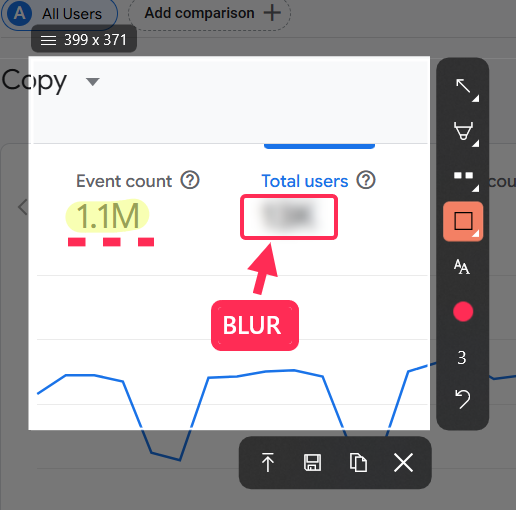
In SleekShot, you can assign any convenient key to create a screenshot. After setup, the process is simple: press one button and the screenshot is instantly created. The image can automatically save to a chosen folder, open in the editor, or upload via link.
This approach fully replaces the standard PrtSc key and makes working with screenshots faster and more predictable.
Why SleekShot Is More Convenient Than Standard Tools
SleekShot goes beyond basic screen capture. The app allows you to immediately edit the screenshot, add text, arrows, and highlights, choose the file format, and control saving options. All of this happens without extra steps — with a single button press.
This is especially convenient for those who value speed, organized files, and a clear workflow.
Conclusion
Taking a screenshot with one button on Windows is completely possible, and you don’t have to rely only on built-in system tools. If you need a fast, convenient, and customizable solution, a specialized application is the better choice. SleekShot lets you assign a single button for screenshots and turn screen capture into a simple, instant action.


