How to Take a Screenshot of One Monitor from Two?
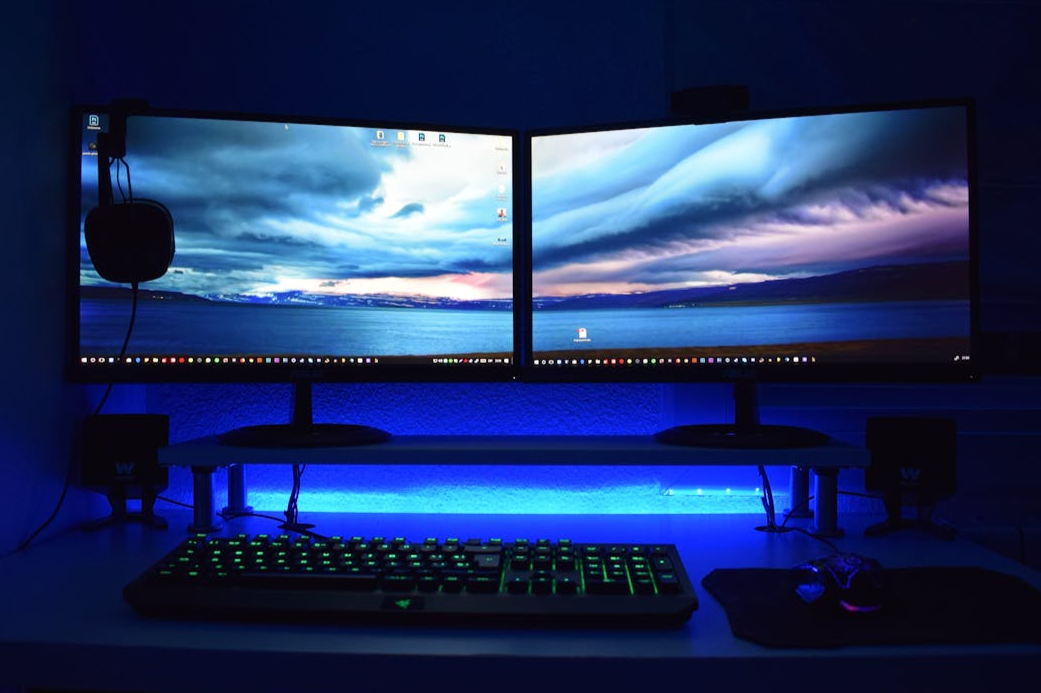
When working with two monitors, you often need to capture only one screen rather than the entire workspace. This is useful for work, learning, creating instructions, and presentations, when it’s important to record information on a specific monitor without extra elements.
Fortunately, Windows offers several convenient ways to accomplish this task.
Standard Windows Features
If you have two monitors connected, Windows treats them as a single workspace by default. Pressing the standard screenshot key often captures both screens at once, which is not always convenient.
However, there is a basic option — capturing the active window. Simply click on the desired window on the selected monitor and perform the capture. This will save only the active window, not the entire screen. But this method won’t work if you need to capture the whole monitor, not just one application.
Using the Built-in Snipping Tool
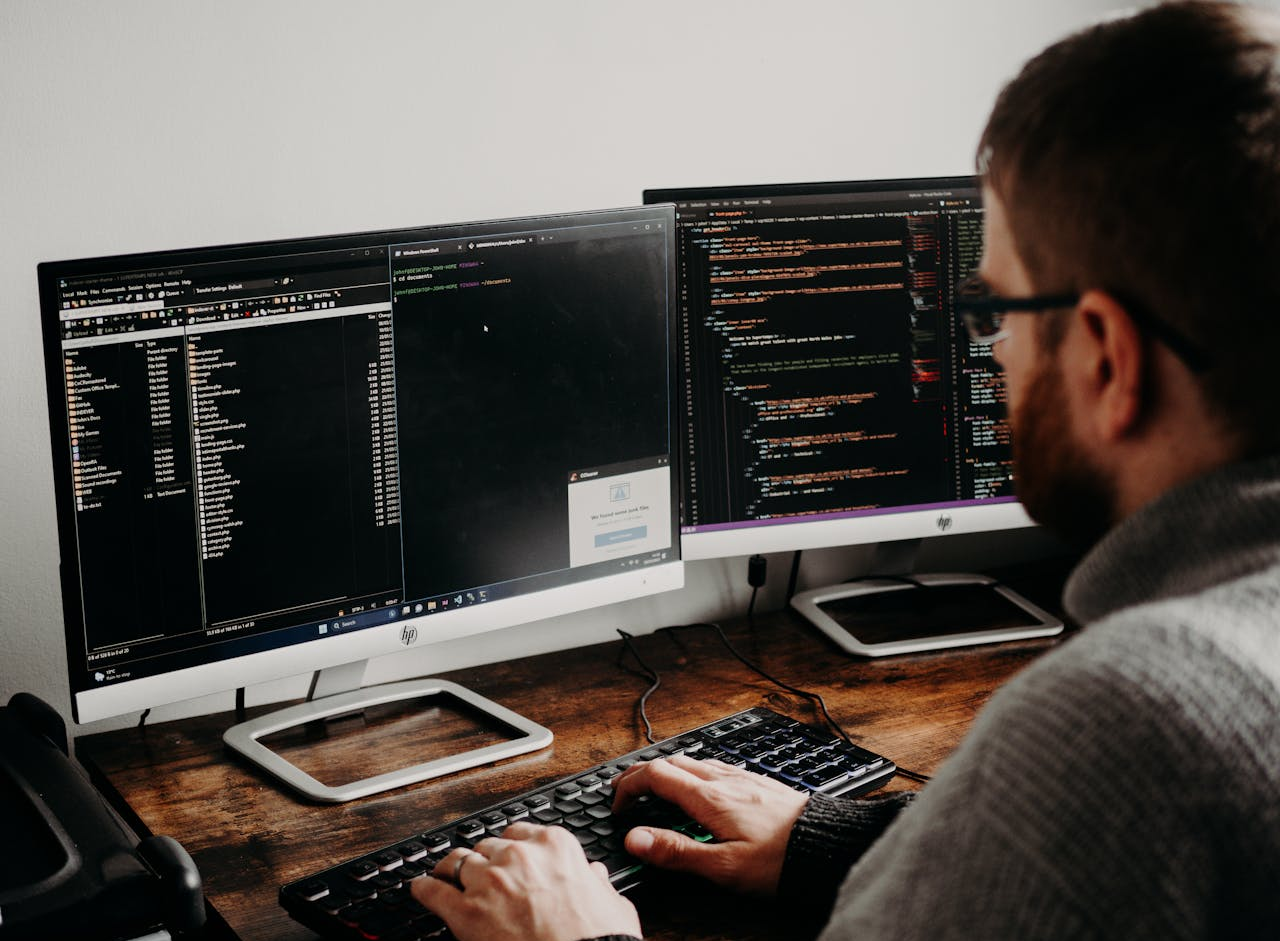
Windows also includes a snipping tool to select a portion of the screen. With it, you can manually draw the boundaries of one monitor using the mouse. This method works, but it’s not very precise or convenient, especially if the screen resolutions differ or the monitors are asymmetrically arranged.
Additionally, you have to manually select the area each time, which slows down the process when taking screenshots frequently.
Screenshot Applications — the Most Convenient Option
The simplest and most reliable way to capture one monitor from two is to use specialized screen capture applications. They recognize multiple displays and allow you to select the specific monitor to capture.
One such solution is SleekShot — a Windows screenshot app with convenient support for multi-monitor setups.
How to Take a Screenshot of One Monitor in SleekShot
SleekShot automatically detects connected screens and lets you choose the monitor to capture. You don’t need to manually select the area — just indicate which screen to capture.
After taking the screenshot, the image opens immediately in the editor, where you can crop unnecessary parts, add arrows, text, or highlights. This is especially useful for creating instructions and work materials.
Why SleekShot Is Convenient for Two-Monitor Setups
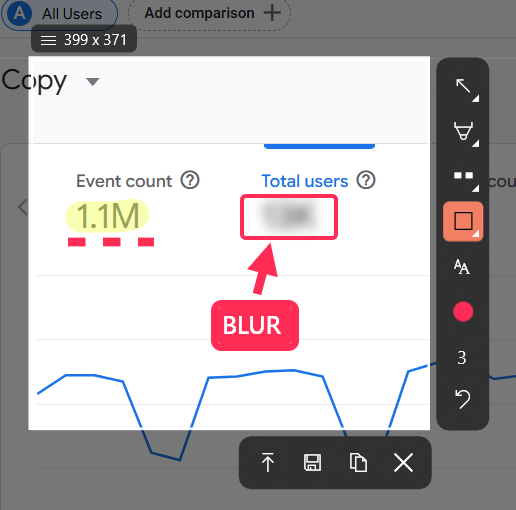
SleekShot saves time and eliminates extra steps. The app allows you to:
. Take a screenshot of a specific monitor in one action
. Avoid unnecessary parts of the second screen
. Quickly edit the result
. Save files in the desired format and folder
This makes working with multiple monitors more comfortable and predictable.
Conclusion
You can capture one monitor from two in Windows in various ways, but standard tools are not always convenient. If you regularly work with multiple screens and want neat and accurate screenshots, it’s better to use specialized applications. SleekShot simplifies capturing the desired monitor and makes working with screenshots fast and easy, even in complex multi-monitor setups.


