How to Take a Screenshot of a Single Screen on a MacBook
Screenshots on a MacBook are a convenient way to capture important information, an application, or a window. Taking a screenshot of a single screen is especially useful when you don’t need to capture the entire desktop or unnecessary elements. In this article, we’ll look at how to create a clean screenshot of a single window and how to simplify the process using the Sleekshot app.
Built-in macOS Features
MacBook provides built-in tools for taking screenshots that allow you to quickly capture an individual window. You can select the desired app or window on the screen, and macOS will create an image without extra elements.
Such screenshots are automatically saved to the default folder, usually the Desktop, where they are easy to find.
macOS also allows you to change the screenshot save location so the Desktop doesn’t become a cluttered storage space. This is useful for users who regularly work with screenshots and want to keep their files organized.
Advantages of Sleekshot
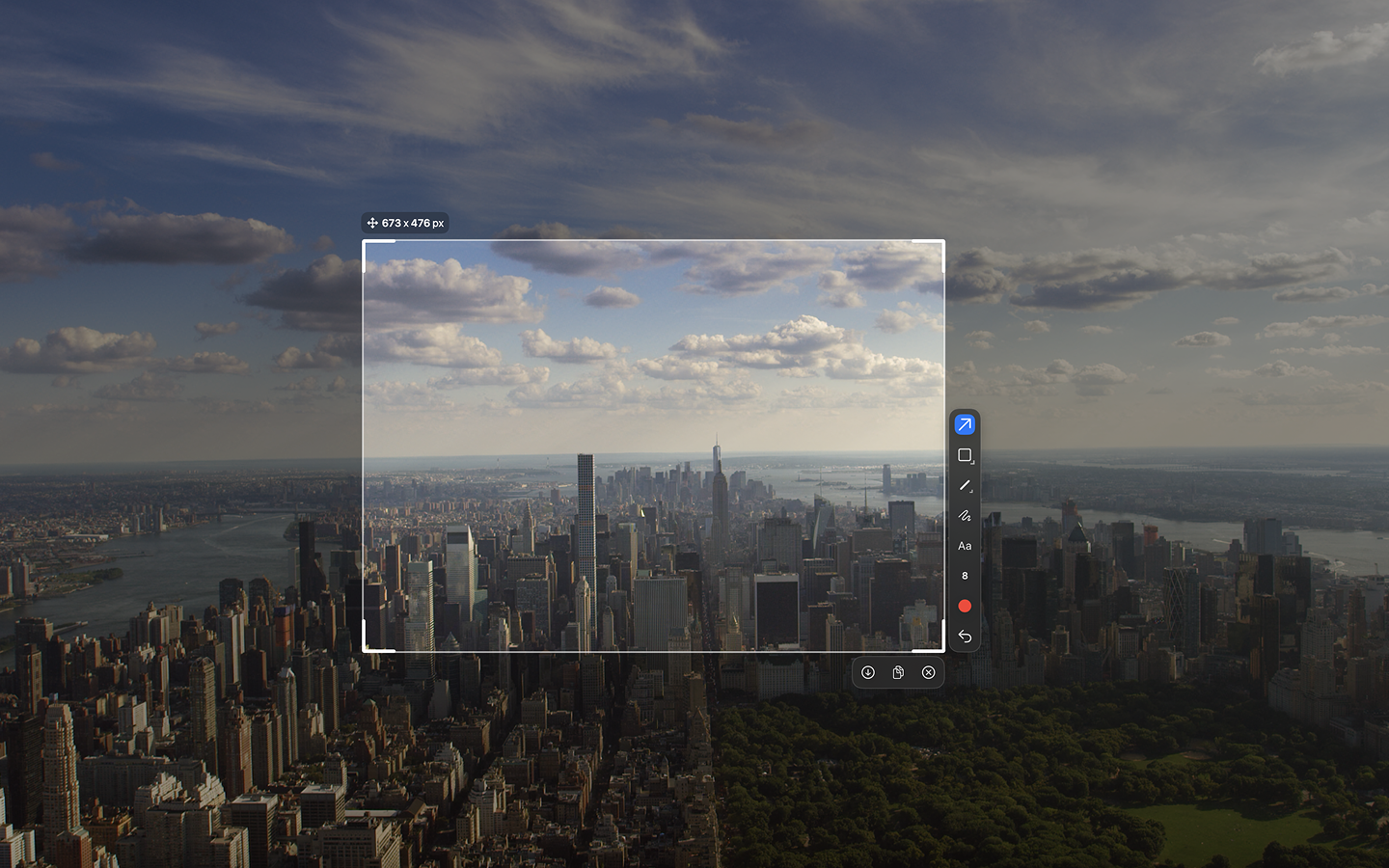
Sleekshot is a modern macOS app that makes the screenshot process even easier. It is especially useful if you frequently take screenshots of individual windows.
With Sleekshot, you can quickly select a window to capture, take a screenshot, and immediately start editing. The app includes tools for adding text, arrows, and shapes, as well as a blur feature for hiding sensitive information.
After editing, the image can be saved to any folder or instantly copied to the clipboard for use in documents and messages.
Sleekshot helps keep screenshots neatly organized, saves time, and makes the entire process more comfortable for everyday work.
Why Choosing the Right Screenshot Mode Matters
A screenshot of a single window differs from a region capture because the app automatically crops unnecessary elements and shows only the selected window. This is especially important for presentations, instructions, or interface demonstrations where a clean and clear image is required.
Using the correct capture mode helps create professional and tidy screenshots with minimal effort.
Conclusion
You can take a screenshot of a single screen on a MacBook using either the built-in macOS tools or third-party applications. Built-in features are convenient for occasional use, but for regular work, Sleekshot is a better choice.
The app allows you to quickly and accurately capture windows, edit images, and save them to the desired location, making MacBook workflow more efficient and organized.


