How to Take a Screenshot if Your Keyboard Doesn’t Have a PrtSc Key?
The absence of a PrtSc key on a keyboard is a fairly common situation. This may occur with compact keyboards, laptops with a reduced layout, or external devices without a dedicated screenshot button. Nevertheless, even in such cases, Windows offers several convenient ways to capture the screen.
Alternative Windows Key Combinations
Even without PrtSc, Windows supports other combinations for taking screenshots. The most common option is Win + Shift + S. This launches the built-in snipping tool, which allows you to:
Select a custom area of the screen
Capture the active window
Capture the entire screen
The screenshot is copied to the clipboard, but editing and automatic saving options are limited.
Using the On-Screen Keyboard
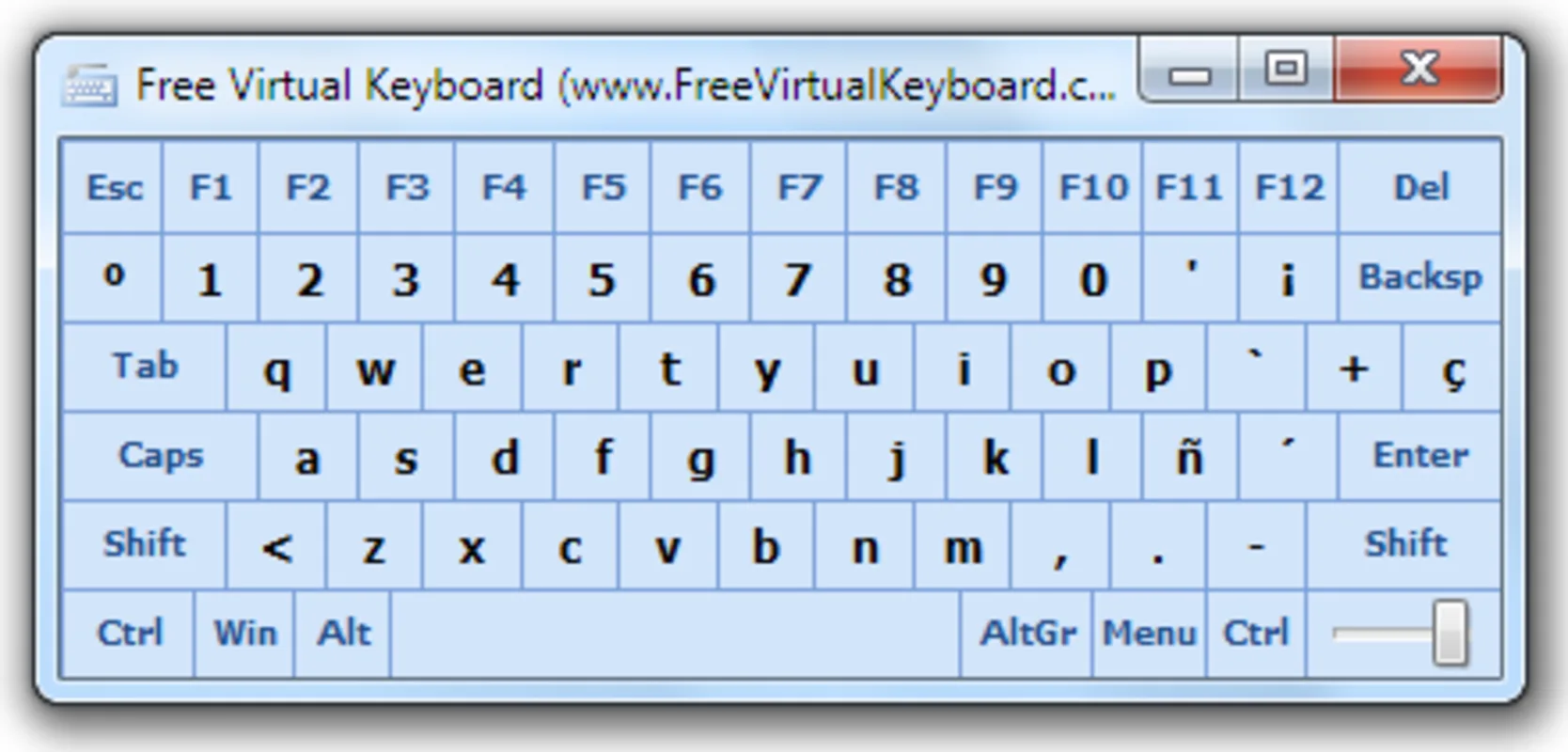
If you specifically need the PrtSc key, you can use the Windows on-screen keyboard. It displays virtual buttons, including the PrtSc key.
The drawbacks of this method are obvious:
Inconvenient for frequent use
Requires extra steps
Slows down workflow
Built-in Windows Tools
Windows also includes a standard screenshot application that can be found via search. It supports delayed captures and manual saving of files, but for regular work, this option is not always ideal due to its slowness.
Screenshot Programs — the Most Convenient Solution
If your keyboard doesn’t have PrtSc, the most practical option is to install a dedicated screenshot application. These programs do not depend on specific keys and allow you to fully customize the capture process.
One particularly convenient solution is SleekShot. It lets you assign any hotkeys for taking screenshots, even on compact keyboards.
How SleekShot Replaces the PrtSc Key
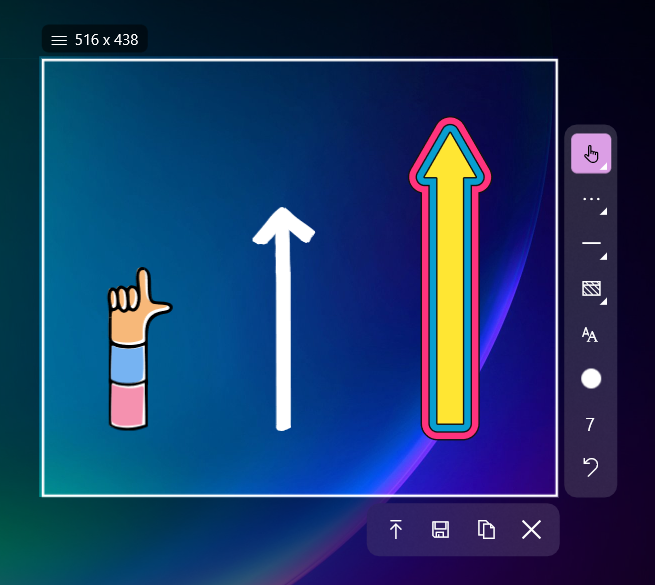
SleekShot takes over all functions of the missing key and offers more capabilities. The app allows you to:
Capture a region, window, or the entire screen
Set your own hotkeys
Edit the image immediately after capture
Automatically save files to the desired folder
Use screenshots and screen recording for work or study tasks
This makes the process faster and more convenient than using standard Windows tools.
Conclusion
The absence of a PrtSc key is not a limitation, but an opportunity to choose a more convenient tool. Windows built-in features help in simple cases, but for regular work, it’s better to use specialized applications. SleekShot fully replaces the PrtSc key, allows flexible control, and makes screenshot creation on Windows as comfortable as possible.


