How to Take a High-Quality Screenshot
A high-quality screenshot is a clear, easy-to-read image without blur, distortion, or unnecessary elements. Such screenshots are convenient for use in instructions, presentations, training materials, and communication with colleagues or customer support. To make a truly good screenshot, it’s important to keep a few simple but essential points in mind.
Use the Right Method to Take a Screenshot
The quality of a screenshot directly depends on how it is created. Screenshots taken with built-in system tools or dedicated applications are saved in the original screen resolution.
Important to remember:
Do not photograph the screen with your phone — this always reduces quality.
Use built-in Windows features or dedicated screenshot tools.
Capture the screenshot directly from the screen, without intermediate steps.
Take Screenshots at the Native Screen Resolution
A screenshot always captures the current screen resolution. Before taking one, make sure that:
The screen is not overly scaled.
The application interface appears sharp.
The necessary elements are clearly visible.
If the image on the screen looks sharp, the screenshot will be sharp as well.
Capture Only the Required Area
Screenshots of a selected area often look cleaner and more professional than full-screen captures. They:
Contain no unnecessary elements.
Are easier to read.
Look more polished.
You can use special screenshot modes or applications that allow precise selection of the required part of the screen.
Do Not Enlarge the Image After Capture
One of the most common causes of quality loss is enlarging a screenshot after it has been saved. When an image is stretched, text and interface elements become blurry.
It’s better to take the screenshot at the required scale right away so you don’t need to resize it later.
Use SleekShot for High-Quality Screenshots
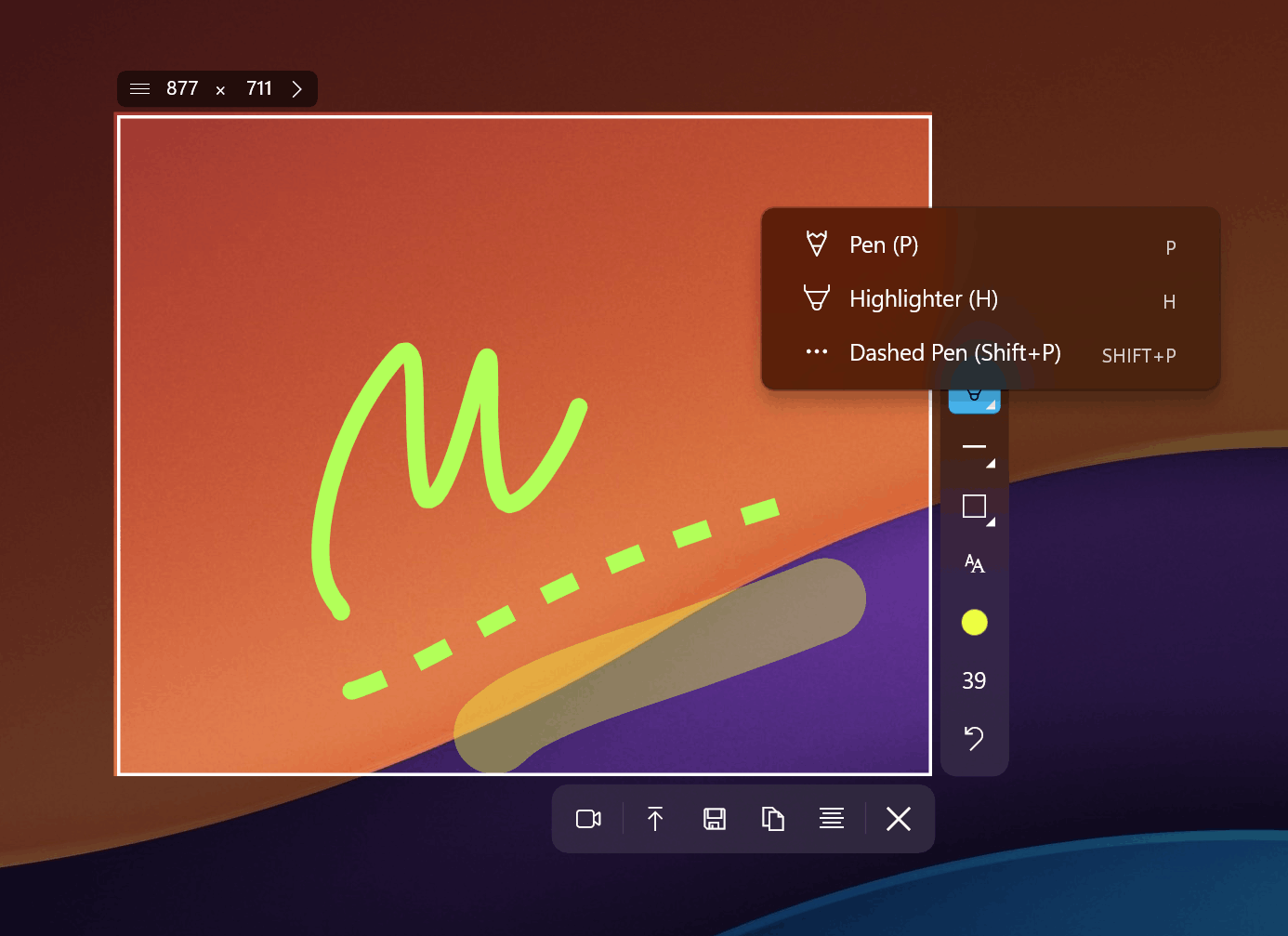
To get high-quality screenshots without extra effort, it’s convenient to use the SleekShot application. It captures screens without quality loss, preserving the original resolution and clarity.
SleekShot allows you to:
Take screenshots of the entire screen, a window, or a selected area.
Save images in high quality.
Edit screenshots immediately without reducing sharpness.
Choose a convenient file format and save location.
The application is especially useful if you need neat, professional-looking screenshots from the first attempt.
Pay Attention to the File Format
Choosing the right file format is important for maintaining quality. Typically:
Images are saved without quality loss.
Text remains sharp.
Colors are not distorted.
SleekShot lets you save screenshots in a suitable format right away, without additional steps.
Conclusion
To take a high-quality screenshot, it’s important to:
Use system tools or reliable applications.
Capture the screen at its original resolution.
Select only the necessary area.
Avoid enlarging the image after saving.
Save the file in an appropriate format.
If you want to get clear, neat, and high-quality screenshots without unnecessary settings, SleekShot is a convenient and reliable solution for both beginners and experienced users.


