How to Edit a Screenshot?
Screenshots are rarely used in their original form. Most often, they need to be cropped, highlight important parts, add explanations, or hide unnecessary information. Editing screenshots helps make the image clear, illustrative, and easy to share with others — whether for work tasks, learning, or technical support.
Why Edit Screenshots
Even a simple screenshot can contain many unnecessary details. Editing allows you to:
. Focus attention on the required element
. Add comments and explanations
. Hide confidential information
. Make the image neat and clear
Without editing, a screenshot often loses its informational value.
Standard Windows Tools
Windows includes basic tools for editing screenshots. You can crop the image, draw simple lines, or save the file in another format. However, these features are limited and suitable only for very simple tasks.
If screenshots are used regularly, standard functions are usually insufficient.
Editing Screenshots in Specialized Applications
It is much more convenient to edit screenshots in applications designed specifically for working with screen images. They open immediately after capture, do not require manual file import, and offer a wide range of tools.
One such solution is SleekShot — a screenshot application where editing is part of the main workflow.
Most Common Editing Tools
When working with screenshots, the most frequently used features include:
. Cropping and resizing the image
. Adding arrows, frames, and shapes
. Inserting text and comments
. Highlighting important elements with color
. Blurring or hiding personal information
Having these tools allows you to prepare a screenshot in just a few seconds.
How to Edit a Screenshot in SleekShot
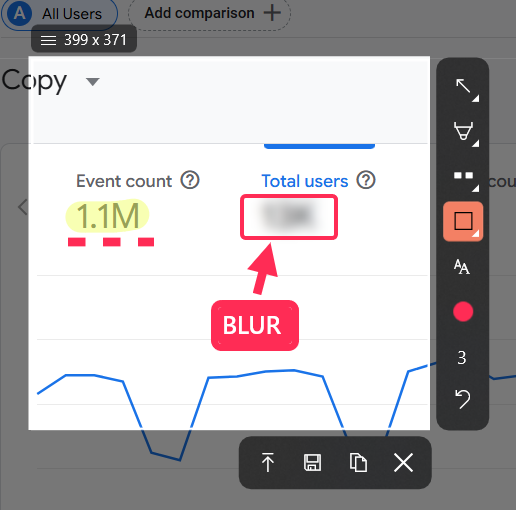
After taking a screenshot, SleekShot automatically opens the built-in editor. You don’t need to launch third-party programs or search for the saved file. All actions are done immediately: you can crop the image, add explanations, highlight the necessary area, or hide unnecessary details.
This approach is especially convenient when creating instructions, client explanations, or educational materials.
Advantages of Editing in SleekShot
SleekShot saves time and simplifies working with screenshots. Editing takes place in a single window, without extra steps. The finished image can be immediately saved, copied, uploaded via a link, or used in documents and messages.
Thanks to this, the editing process becomes fast and logical, even for users without experience in graphic editors.
Conclusion
Editing screenshots is an important step in working with screen images. It helps make information clear and visually neat. Windows’ built-in tools are suitable for simple tasks, but for regular work, specialized applications are more convenient. SleekShot provides everything needed for quick and easy screenshot editing in one tool.


