How to Draw an Arrow on a Screenshot

Screenshots are often used for explanations, instructions, and visual guides. To immediately draw attention to the important element, the image alone is sometimes not enough. In such cases, a simple and effective tool is an arrow on the screenshot. It helps quickly show where to look and what is important.
Why Add Arrows to Screenshots
Arrows make the image clearer and more structured. They are especially useful when you need to:
. Point to a specific button or interface area
. Explain the order of actions
. Highlight an important detail among many elements
. Reduce the need for lengthy text explanations
A well-placed arrow often replaces a whole paragraph of instructions.
Standard Ways to Draw Arrows
In Windows, you can open a screenshot in a regular graphic editor and manually draw an arrow using shapes or lines. This method works but is inconvenient: you need to save the file separately, open the editor, and adjust the shape and color. For regular work, this takes extra time.
Using Screenshot Applications
It is much easier to draw arrows immediately while editing a screenshot — right after taking it. There are screenshot applications with built-in annotation tools for this purpose.
One such solution is SleekShot, where adding arrows is implemented in a very convenient and intuitive way.
How to Draw an Arrow on a Screenshot in SleekShot
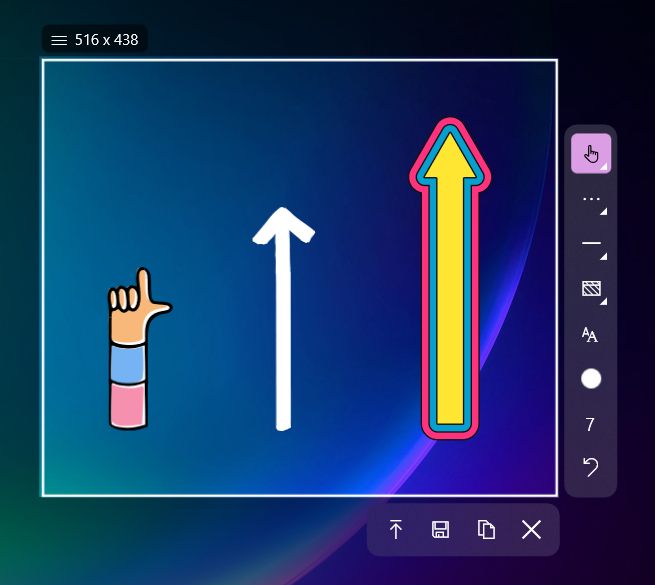
After taking a screenshot, SleekShot automatically opens the built-in editor. You can select the “Arrow” tool and indicate the desired location on the image using the mouse. The arrow can be easily resized, moved, and customized in color and thickness to fit harmoniously into the screenshot.
The entire process takes just a few seconds and does not require any graphic design skills.
Advantages of Using SleekShot
SleekShot allows not only drawing arrows but also adding text, frames, or highlights immediately. All changes are made in one window, without switching between programs. The finished screenshot can be saved, sent, or shared via a link instantly.
This approach is especially convenient for work, training, creating instructions, and communicating with clients or colleagues.
Conclusion
Drawing an arrow on a screenshot is a simple way to make an image clear and visual. Standard editors are suitable for occasional use, but for regular work, specialized applications are more convenient. SleekShot lets you add arrows and other elements right after capturing a screenshot, saving time and simplifying work with visual explanations.


