How to Configure the PrtSc Button on a PC?
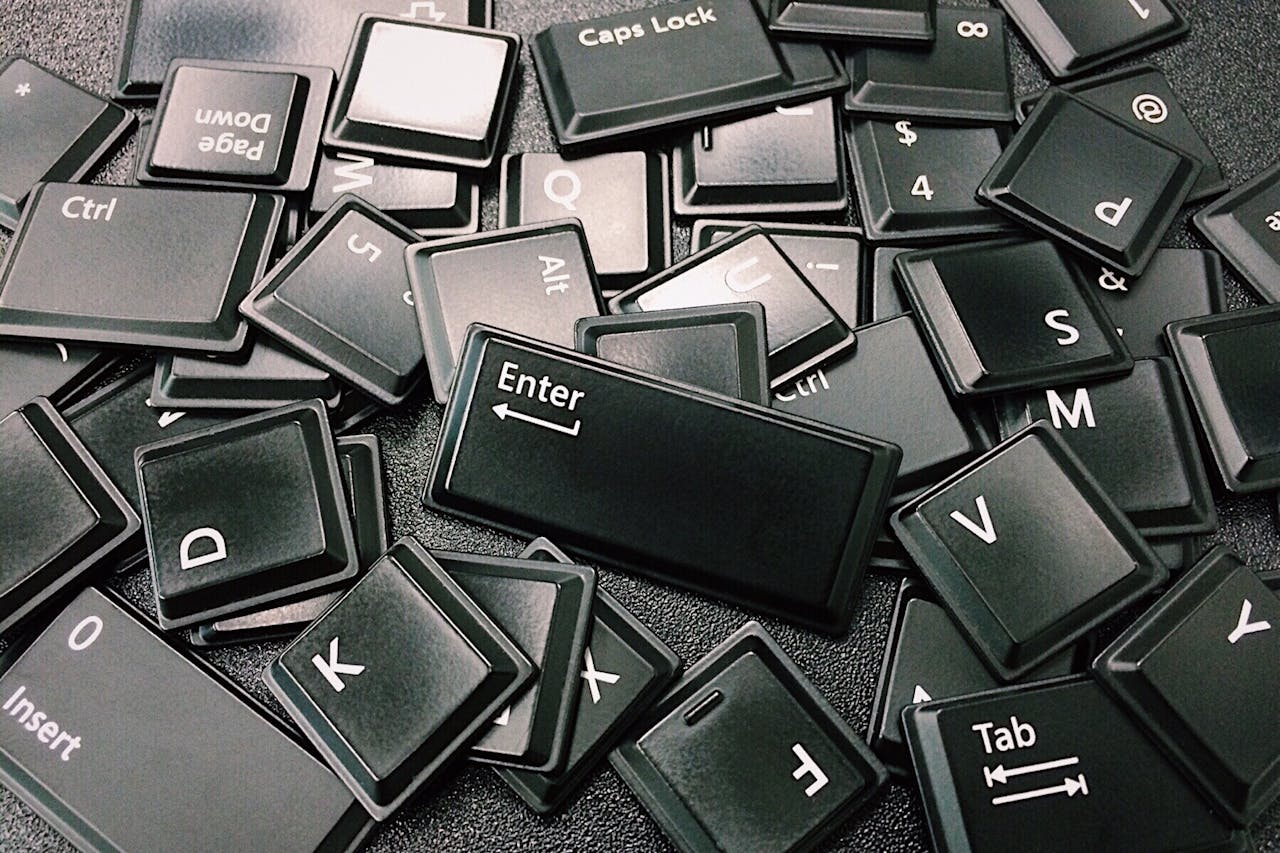
The PrtSc (Print Screen) button is designed for taking screenshots and is found on almost every keyboard. By default, it works in a standard way, but not all users know that you can customize its behavior to capture screenshots faster and more conveniently.
Let’s go through the main ways to configure it, including options suitable even for beginners.
How the PrtSc Button Works by Default
In standard Windows settings, pressing PrtSc captures the entire screen and copies it to the clipboard.
Using Alt + PrtSc copies only the active window to the clipboard.
The combination Win + PrtSc automatically saves the screenshot to the "Screenshots" folder.
If a user is unaware of these features, the button may seem to work incorrectly, although it is actually performing its standard function.
Configuring PrtSc Through Windows Settings
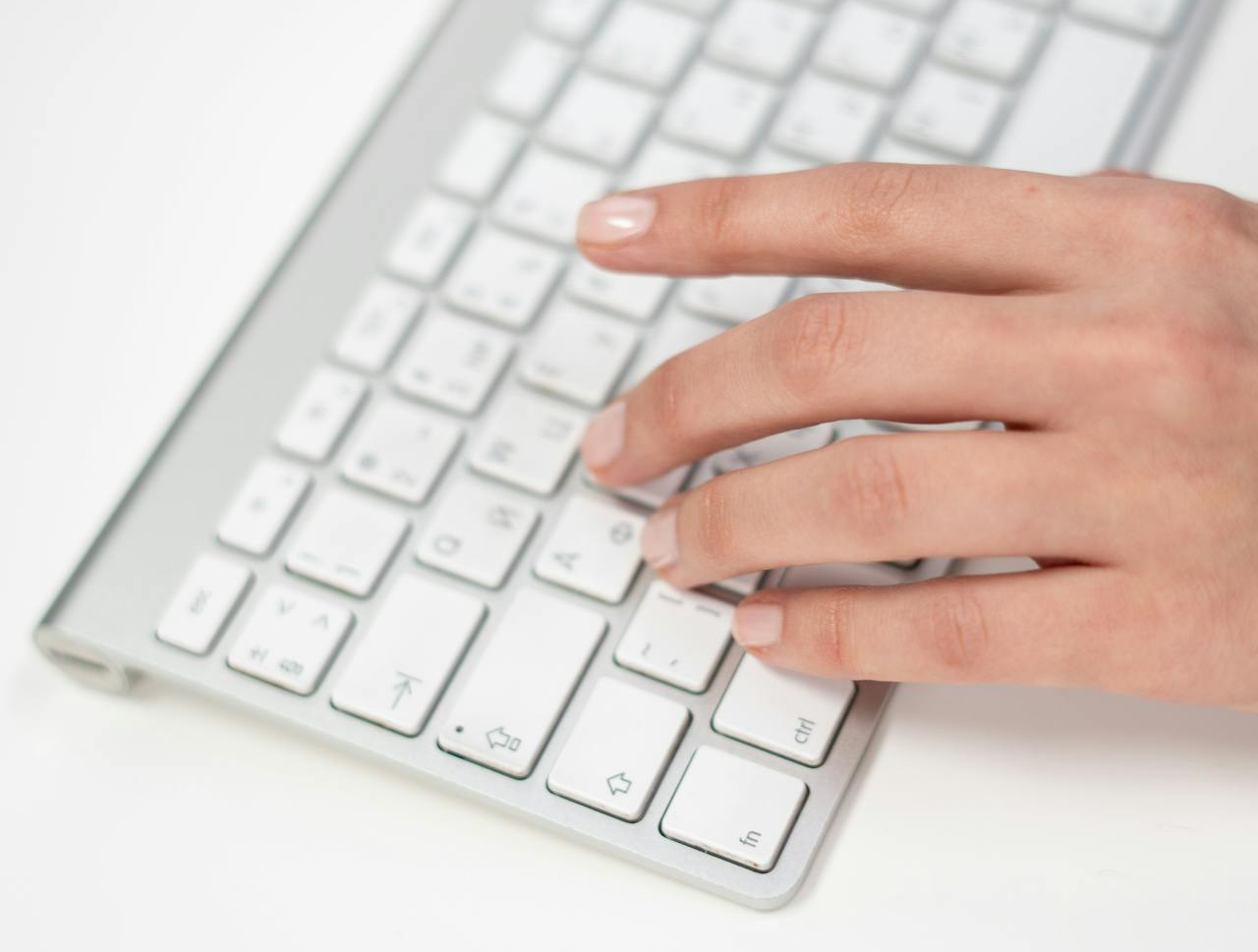
Windows allows you to change the behavior of the PrtSc button and link it to a convenient screenshot tool.
To do this:
Open Settings
Go to the Accessibility section
Find the option related to screenshots
Enable using the PrtSc button to open the snipping tool
After this, pressing PrtSc will launch the area selection mode instead of capturing the entire screen.
Using Additional Key Combinations
Sometimes the PrtSc button works best in combination with other keys:
. Fn + PrtSc — if the function is shared with another key
. Alt + PrtSc — to capture the active window
. Win + PrtSc — to save automatically
It’s important to consider the specifics of your keyboard, especially if it’s compact.
Configuring the PrtSc Button with SleekShot
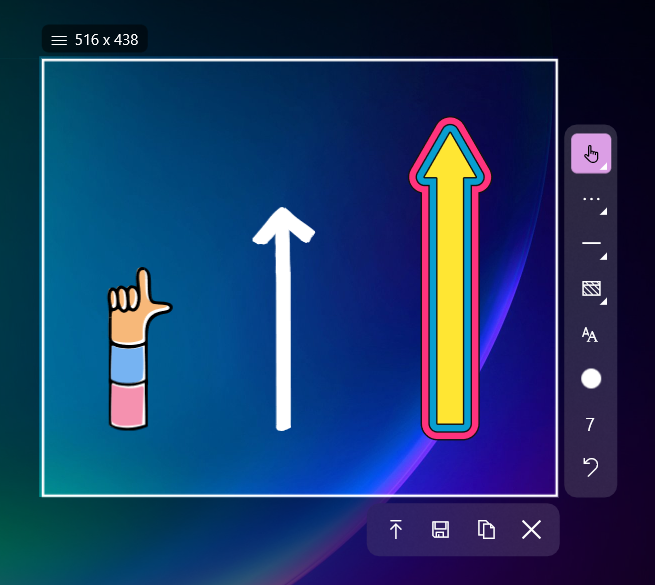
For more flexible configuration, it’s convenient to use SleekShot. The app allows you to remap the PrtSc button and make screenshot creation as convenient as possible.
With SleekShot, you can:
. Assign PrtSc to capture a region, window, or entire screen
. Choose your own hotkeys
. Save images directly to the desired folder
. Bypass limitations of standard Windows settings
SleekShot is especially useful if you want the PrtSc button to work exactly the way you need, without complicated system adjustments.
Why You Should Configure the PrtSc Button
Configuring PrtSc helps to:
Speed up screenshot creation
. Avoid unnecessary steps
. Get the desired result immediately
. Work with screenshots more consciously and conveniently
For users who frequently take screen captures, proper configuration saves a lot of time.
Conclusion
The PrtSc button can be configured in several ways:
. Use standard Windows key combinations
. Change its behavior in system settings
. Assign convenient actions through SleekShot
If you want simplicity, flexibility, and full control over screenshots, SleekShot makes the PrtSc button truly convenient for everyday use.


