How to Combine Two Screenshots into One
Combining multiple screenshots into a single image is a useful skill for creating instructions, reports, tutorials, or simply demonstrating a sequence of actions. It helps make content more compact and easier to understand.
Why It Is Useful
When you combine two screenshots into one, you avoid the need to scroll through multiple images. A single file with both visuals looks cleaner and helps keep the focus on the main idea. This is especially important in educational materials and presentations.
How to Combine Screenshots
Built-in Editors
The simplest way is to use basic image editors. For example, in Paint on Windows you can open the first screenshot, expand the canvas, and place the second one next to it. On Mac, using the Preview app, you can copy one screenshot and place it beside another, then save the combined image.
Online Editors
If you prefer not to install software, there are convenient web-based tools. They allow you to upload images, arrange them on a single canvas, and download the final result. This is useful when you need to quickly combine screenshots without installing any programs.
Popular Apps and Image Editing Software
To do more than just combine screenshots and work more creatively with images, there are many applications available—from simple tools to professional editors:
Snapseed — a powerful mobile app from Google for iOS and Android. It is free and includes many tools such as filters, color correction, and selective adjustments.
Picsart — a cross-platform editor with extensive capabilities including effects, templates, layers, and graphic elements.
Luminar Neo — a Windows and Mac application with AI-powered tools such as background removal, detail enhancement, and upscaling.
VSCO — a popular photo editor known for high-quality filters and aesthetic editing tools.
Pixlr — a versatile editor with support for layers, masks, and AI tools, available both in the browser and on mobile devices.
In addition, for advanced tasks on a computer, professional tools like Adobe Photoshop or GIMP can be used. They provide full control over layers and composition but require more time to learn.
SleekShot — a Convenient App for Creating and Editing Screenshots
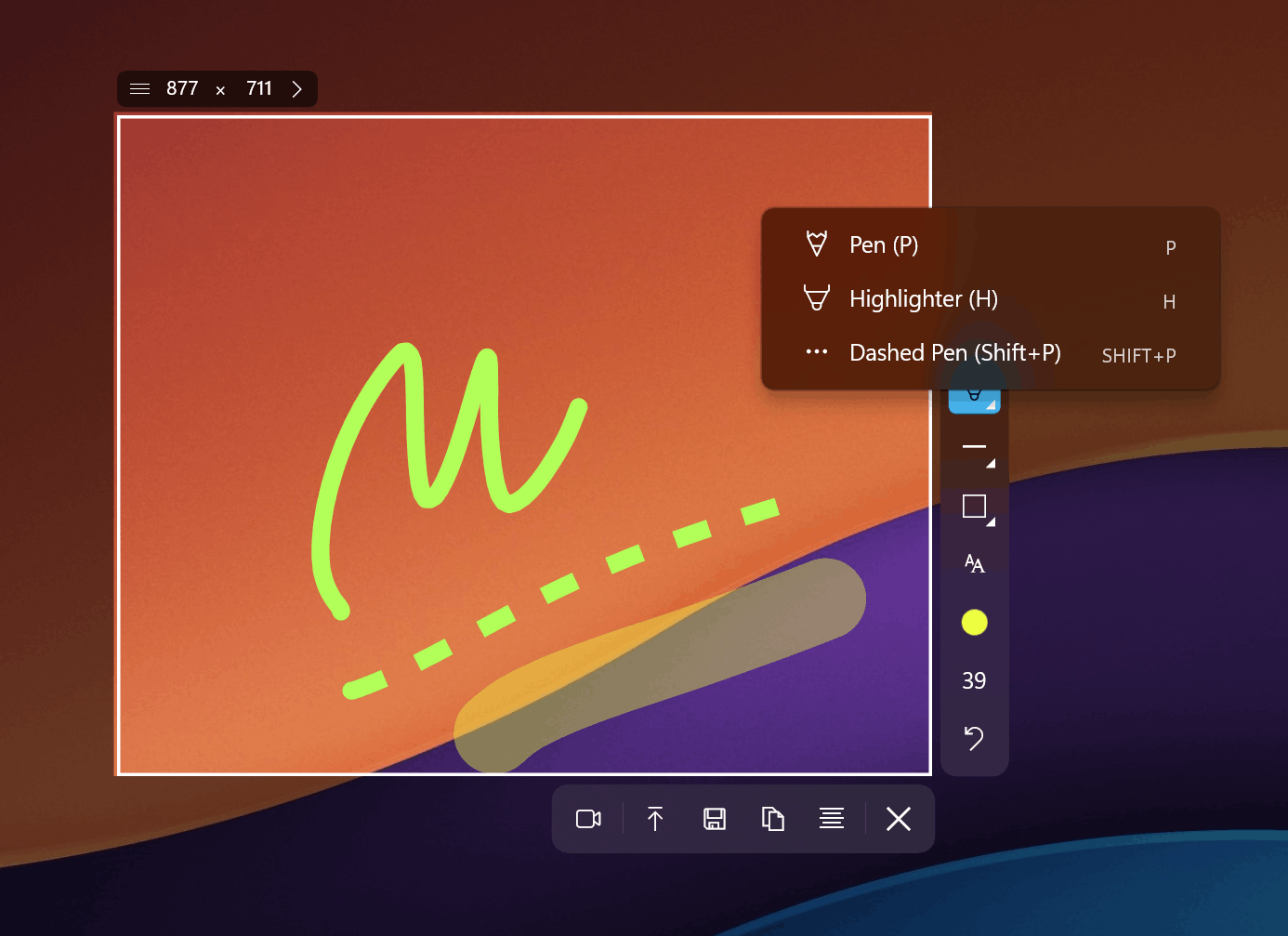
If you need to quickly create and edit screenshots, SleekShot is a great choice. It combines screen capture and basic editing features, making it a convenient tool for preparing visual materials.
With SleekShot, you can:
take screenshots in one click;
combine multiple screenshots into a single image;
add annotations, arrows, text, and frames;
quickly save and share the final image.
This app is especially useful when you need to quickly prepare clear instructions, reports, or tutorials without launching heavy graphic editors.


