How to Change the Screenshot Format?
By default, screenshots are saved in standard formats, most often PNG or JPG. However, in practice, there is often a need to change the image format — for example, to reduce file size, prepare a screenshot for a website, or make it compatible with a specific program. Fortunately, changing the screenshot format on Windows can be done in several simple ways.
Why Change the Screenshot Format
Different image formats are suitable for different tasks. Changing the format allows you to:
. Reduce the file size for faster sharing
. Improve compatibility with websites and services
. Preserve image quality during editing
. Prepare screenshots for presentations or documentation
Knowing how to change the screenshot format is therefore a useful skill for work and everyday tasks.
Changing Format Using Standard Windows Tools

In Windows, you can change the screenshot format using built-in applications. Simply open the image, select “Save As,” and choose the desired format. This method works for single files, but it requires manual steps and takes time, especially if there are many screenshots.
In addition, batch processing and automation capabilities in standard tools are very limited.
Using Online Services
Another option is to upload the screenshot to an online image converter and select the desired format. This method works but has drawbacks: uploading files to the internet, size limitations, and potential risks to confidential data.
Changing Screenshot Format in Screenshot Applications
The most convenient and fastest way is to use specialized applications that allow you to save screenshots in the desired format immediately or change it during export.
A good example of such a solution is SleekShot — a screenshot application that provides flexible control over image formats.
How to Change the Screenshot Format in SleekShot
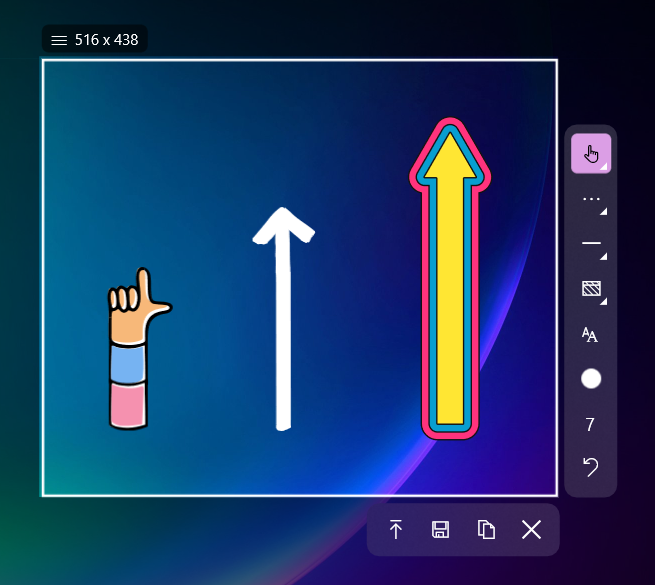
In SleekShot, the user can preselect the format in which screenshots will be saved or change it after capture. After creating the image, simply open the built-in editor and save the file in the desired format — no third-party programs or extra steps are needed.
This is especially convenient when:
. You need to quickly switch between PNG and JPG
. It is important to control file quality and size
. Screenshots are used for different tasks — from messaging to website publication
Why SleekShot Is Convenient for Managing Formats
SleekShot eliminates extra steps and makes working with screenshots more flexible. All format settings are in one place, and changes are made in just a few clicks. The user immediately gets a ready-to-use file suitable for the specific task, without reopening or converting images.
Conclusion
Changing the screenshot format is a simple but important task. Standard Windows tools and online services work for occasional use, but for regular work, specialized applications are better. SleekShot makes it easy to manage screenshot formats, saves time, and makes working with screen images as convenient as possible.


