How to Change the Folder Where Screenshots Are Saved on a PC

When screenshots are automatically saved to the same location, that folder eventually turns into a chaotic storage space. Dozens or even hundreds of similarly named files make it harder to find the right image — especially if screenshots are used for work, studying, or creating instructions. That’s why moving the save folder is a simple way to stay organized and save time.
Where Windows Stores Screenshots by Default
In standard Windows settings, all screenshots taken with the Win + Print Screen shortcut are automatically saved to the “Screenshots” folder inside the “Pictures” directory. The system creates this folder automatically and uses it without additional confirmation.
However, the storage path is not fixed — you can change the location of this folder, and all new screenshots will then be saved to the selected destination.
How to Move the “Screenshots” Folder
Changing the folder location is done through Windows properties and takes only a few minutes:
Open File Explorer and go to the “Pictures” section.
Find the “Screenshots” folder, right-click it, and select “Properties.”
In the window that appears, open the “Location” tab — this shows the current storage path.
Click “Move” and choose a new folder: on the desktop, on another drive, or inside a project directory.
Confirm the action. Windows will offer to move existing files — if you agree, all previous screenshots will be transferred to the new location.
After that, the system will automatically use the updated path.
What Changes After Moving the Folder
Once the folder is relocated:
new screenshots are saved directly to the selected directory
files are easier to organize and find
there is no need to manually search for images each time
Windows continues saving screenshots automatically without extra setup
It is important to note that this setting only affects the Win + Print Screen shortcut. The regular Print Screen key still copies the image to the clipboard.
When It’s More Convenient to Use SleekShot
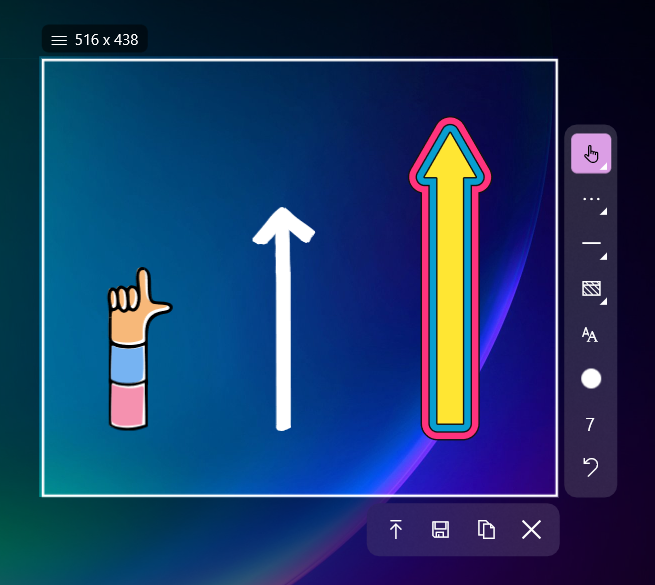
If changing system folders feels inconvenient, or if you need to save images to different locations each time, a logical alternative is SleekShot.
With SleekShot:
you choose the folder directly at the moment of saving
you can easily organize screenshots by different projects
there is no need to open Windows settings
you maintain full control over each file
This approach is especially convenient if you frequently take screenshots for different tasks and do not want everything stored in a single folder.
Brief Summary
You can change where screenshots are saved on a PC in several ways:
move the “Screenshots” folder through Windows settings
manually save images to the desired directory
use SleekShot, where the save path is selected immediately when creating a screenshot
If convenience, organization, and control without unnecessary steps are important to you, SleekShot becomes a simple and clear solution even for beginner users.


