How to Add Text to a Screenshot
A screenshot shows what is on the screen, but it does not always clearly explain what is happening. To clarify actions, highlight important elements, or provide comments, text is often added to a screenshot. This makes the image understandable even without additional explanations and greatly simplifies communication in work, learning, and technical support.
Why Add Text to a Screenshot
Text on a screenshot helps convey information faster and more accurately. It is used to:
. Explain what is happening on the screen
. Label buttons or interface elements
. Indicate the sequence of actions
. Add comments or hints
. Replace long written descriptions
This approach is especially useful when creating instructions, guides, and training materials.
Adding Text with Standard Tools

In Windows, you can open a screenshot in a simple graphic editor and manually add text. This method is suitable for one-time tasks, but it is not the most convenient: you need to save the file separately, open the editor, and adjust the font settings. If you work with screenshots frequently, this takes extra time.
Screenshot Applications with Text Annotations
It is much more convenient to use applications where adding text is part of the screenshot editing process. Such tools open immediately after capture and allow you to make changes without switching between programs.
One such solution is SleekShot — a screenshot application where working with text is simple and intuitive.
How to Add Text to a Screenshot in SleekShot
After taking a screenshot, SleekShot automatically opens the built-in editor. You simply select the text tool, click on the desired area, and enter your comment. The text can be easily edited: you can change its size, color, and position so that it is clearly visible and does not cover important elements.
The entire process takes only a few seconds and does not require any special skills.
Advantages of Adding Text in SleekShot
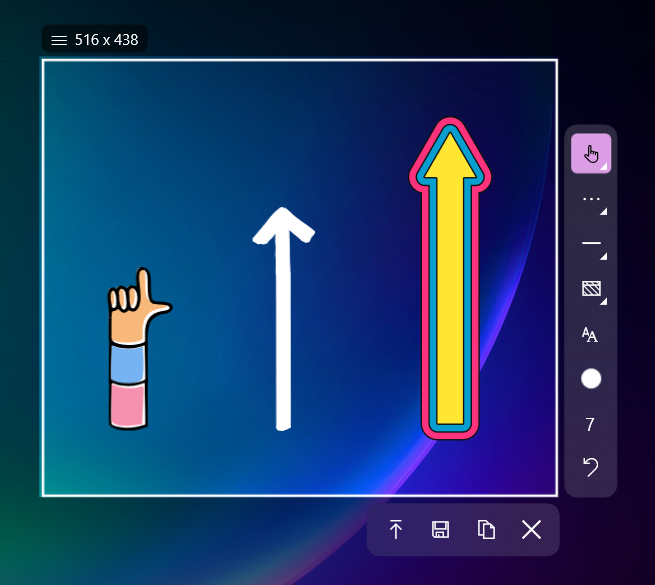
SleekShot allows you to combine text with other elements such as arrows, frames, and highlights. All edits are made in one window, and the finished screenshot can be immediately saved, copied, or shared via a link. This is especially convenient for active communication, client work, and preparing instructions.
Conclusion
Adding text to a screenshot is a simple way to make an image clear and informative. Standard tools are suitable for occasional use, but for regular work, specialized applications are more convenient. SleekShot makes it easy to add text to screenshots and turn ordinary screen captures into clear and effective visual materials.


