Common Screenshot Mistakes and How to Avoid Them
Screenshots may seem like a simple tool, but in practice they often lead to misunderstandings, unnecessary questions, and wasted time. Blurry images, extra details, or missing explanations can completely reduce the usefulness of even an important screenshot. Let’s look at the most common mistakes and how to avoid them, especially when working on a Mac.
Capturing Unnecessary Information
One of the most common mistakes is taking a full-screen screenshot when only a single element or window is needed. As a result, unrelated apps, browser tabs, or personal data may appear in the image.
How to avoid it: use a specific window or selected area capture. This makes the image cleaner and helps focus immediately on the relevant information.
Lack of Explanations
A screenshot without context often raises questions. A user or colleague may not understand what exactly they should focus on.
How to avoid it: add visual cues such as arrows, frames, or short labels. Even minimal annotation makes a screenshot much clearer.
Sharing Confidential Data
Passwords, personal information, email addresses, and notifications can easily end up in screenshots. This is especially critical when sending images in work chats or publishing them online.
How to avoid it: always review the image before sharing and hide sensitive information. It’s better to spend a few seconds editing than to face security issues later.
Low Image Quality
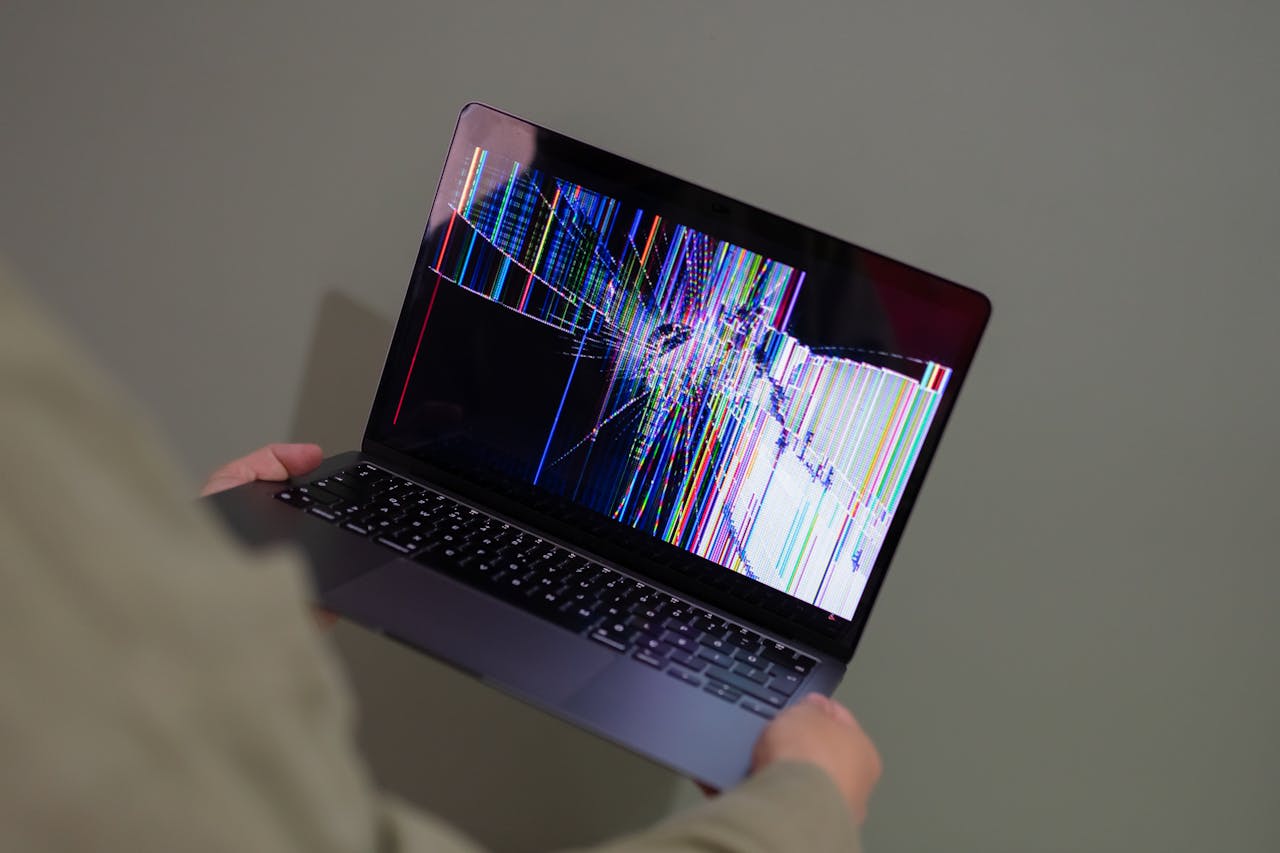
Sometimes screenshots appear blurry or hard to read, especially after scaling or repeated saving in an unsuitable format.
How to avoid it: use formats that preserve interface clarity and avoid repeatedly re-saving images. For instructions and presentations, it’s important that text and interface elements remain readable.
Disorganized Screenshot Storage
When screenshots are saved without structure, it becomes difficult to find the needed file after a few days. The desktop quickly turns into a messy collection of images.
How to avoid it: set up automatic saving to a dedicated folder and use clear file names. This is especially important when working with screenshots regularly.
How Sleekshot Helps
Sleekshot is a macOS app that helps avoid most of these mistakes. It allows you to precisely select a screen area or window, instantly add annotations, and blur sensitive information. Sleekshot simplifies editing and saving screenshots, helps keep files organized, and makes visual materials clearer and more professional.
Conclusion
Most screenshot mistakes are not caused by the complexity of the tool, but by inattention and the lack of a proper workflow. Clean captures, minimal explanations, and proper file organization make screenshots truly useful.
By using convenient tools like Sleekshot, you can avoid common issues and make working with screenshots on Mac faster and more efficient.


