Best Screenshot Apps for Mac

Screenshots on macOS have long gone beyond simple screen capture. Today, they are used for explanations, work instructions, presentations, team communication, and customer support. Although macOS comes with built-in screenshot tools, many users eventually find them lacking in flexibility and convenience. That’s why third-party screenshot apps remain in high demand. Below are some of the best solutions for Mac, including our app Sleekshot.
Sleekshot — Minimalism and Speed Without Compromises
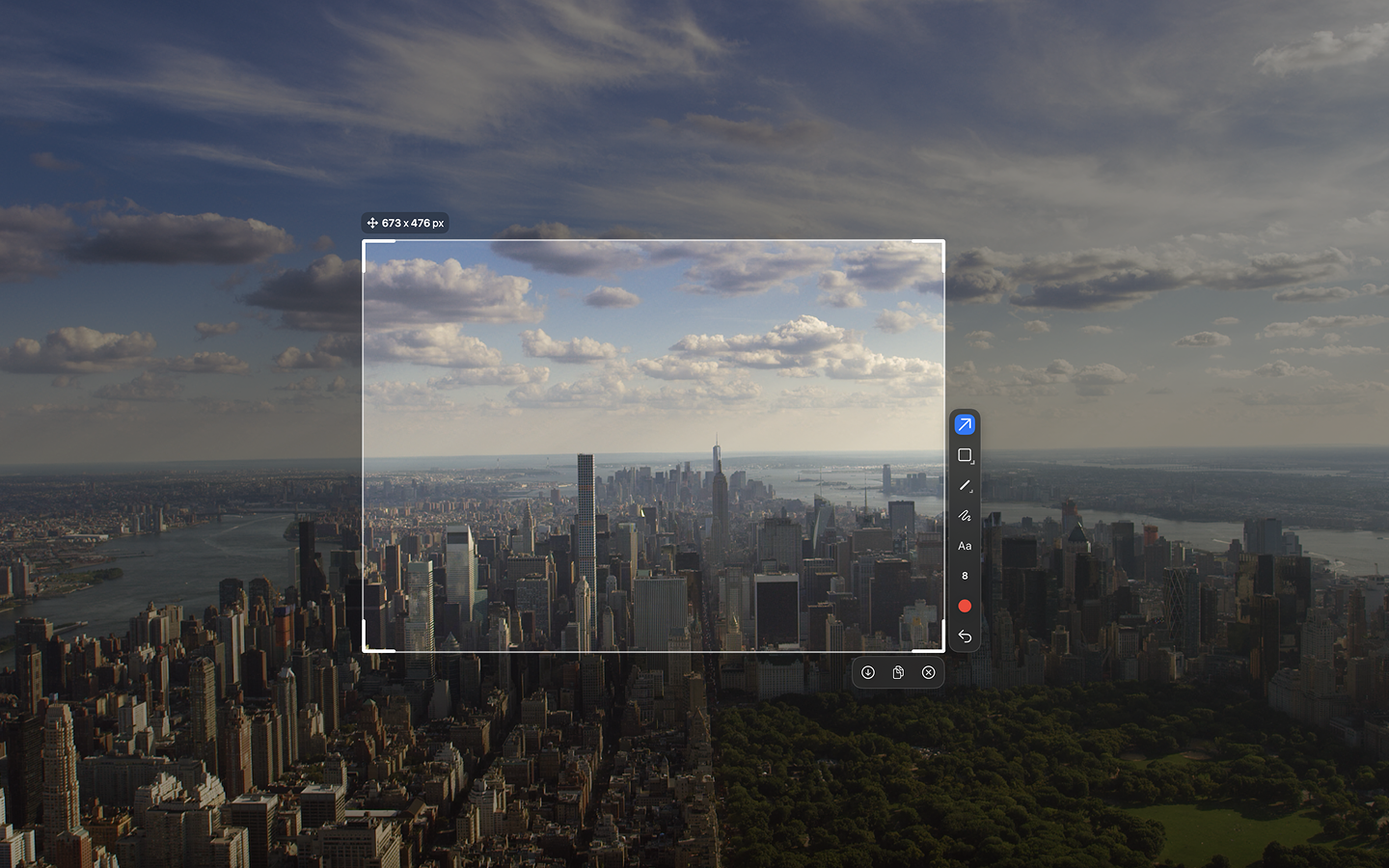
Sleekshot is a macOS screenshot app designed with a strong focus on simplicity and efficiency. It’s ideal for users who want a polished result with minimal effort and no time spent on complex settings.
The app supports capturing the full screen, individual windows, and custom areas. After taking a screenshot, users can quickly add explanatory text, arrows, shapes, or hide sensitive information using blur. Sleekshot blends seamlessly into the macOS interface and doesn’t distract from everyday work.
This solution is especially convenient for daily use when speed, clean results, and a clear interface matter most.
Built-in macOS Tools
macOS includes a native set of tools for taking screenshots and recording the screen. Using keyboard shortcuts, you can instantly capture the entire screen, select a specific area, or open a control panel with additional options, including video recording.
The main advantage of this approach is that no additional software installation is required. However, editing and annotation options are very limited, so for regular screenshot work, the built-in tools often aren’t enough.
Snagit — A Tool for Professional Use
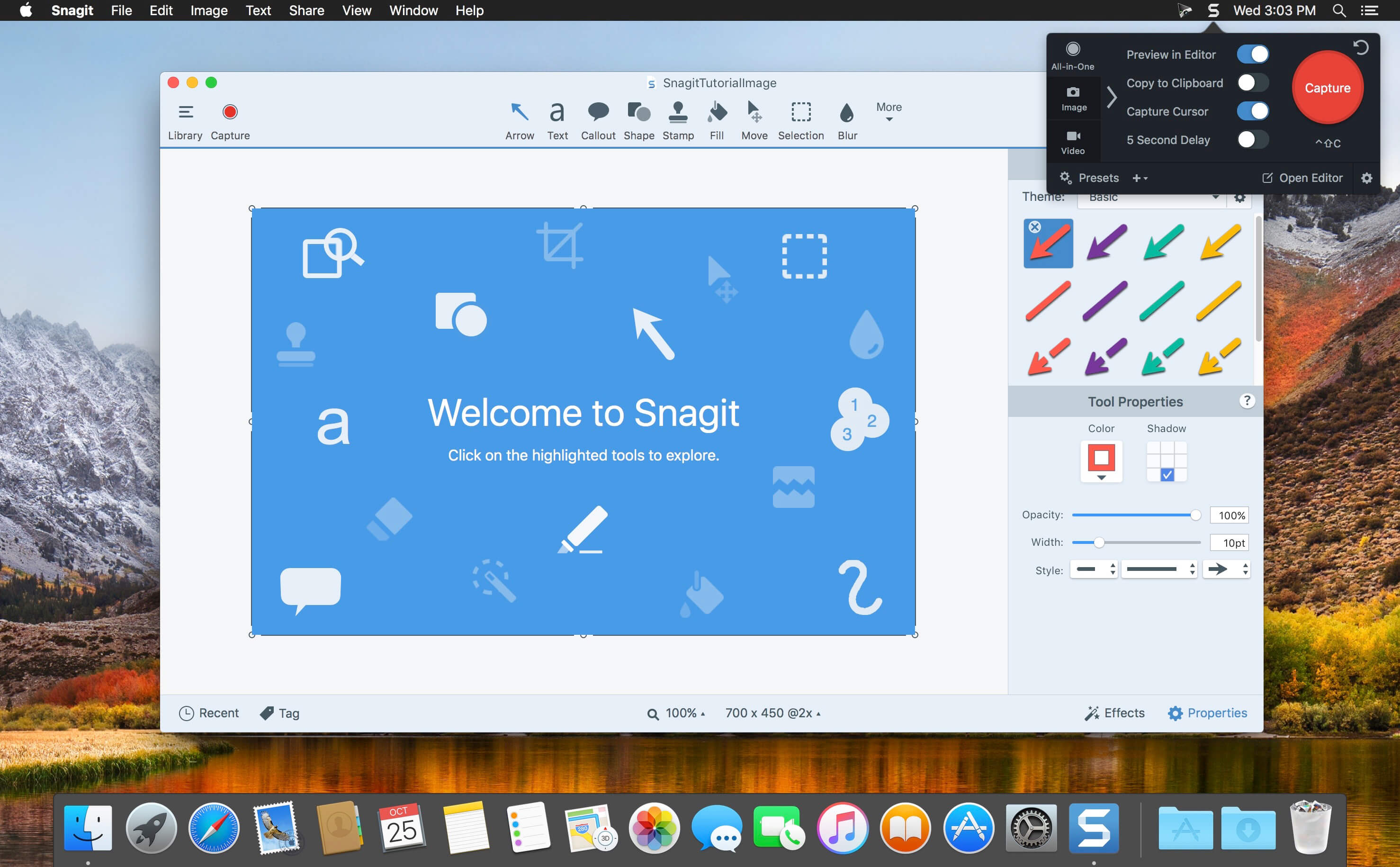
Snagit is aimed at users who need advanced features. The app offers powerful editing tools, scrolling and long-page capture, template-based workflows, and tools for creating training materials.
Snagit is widely used in corporate environments, education, and technical support. However, its paid license makes it less appealing for users who only need basic screenshot functionality.
Lightshot — Fast Screenshots with No Extras
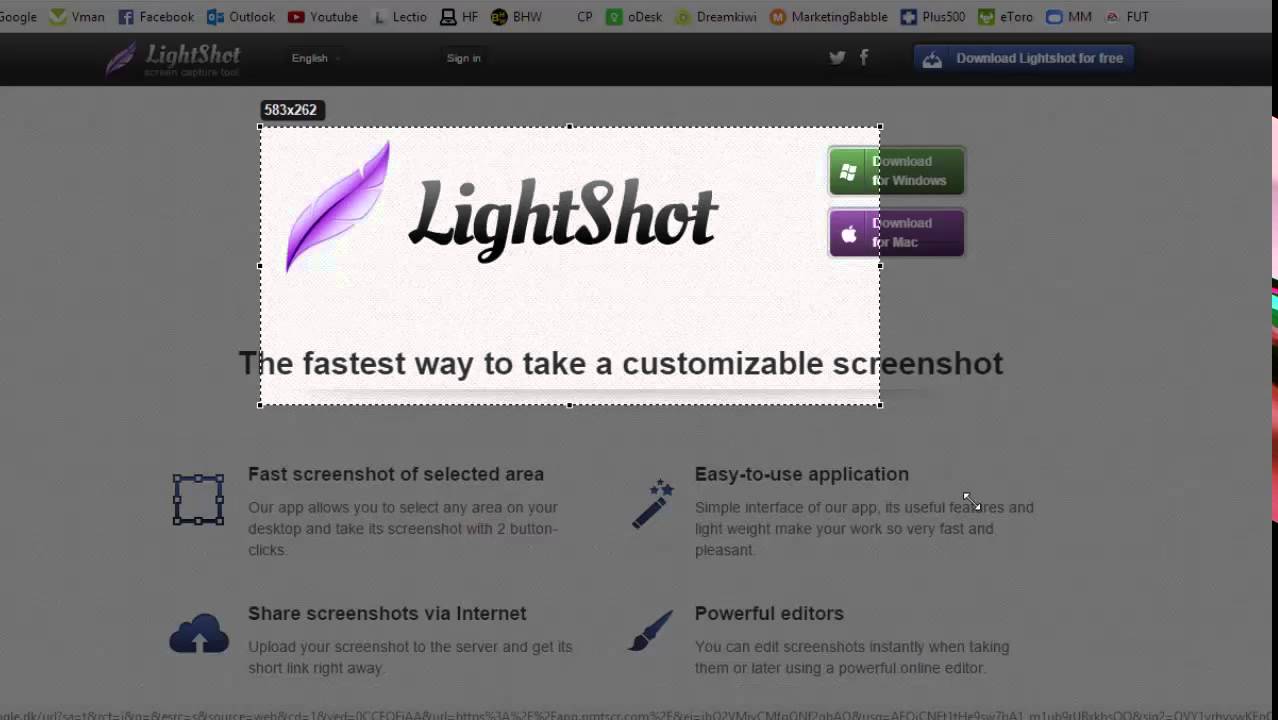
Lightshot is a good choice for those looking for a very simple tool. It allows users to quickly select a screen area and add basic annotations such as text or arrows.
This solution works well for occasional tasks, but its feature set may be insufficient for more complex editing scenarios.
Monosnap — Focused on Team Collaboration
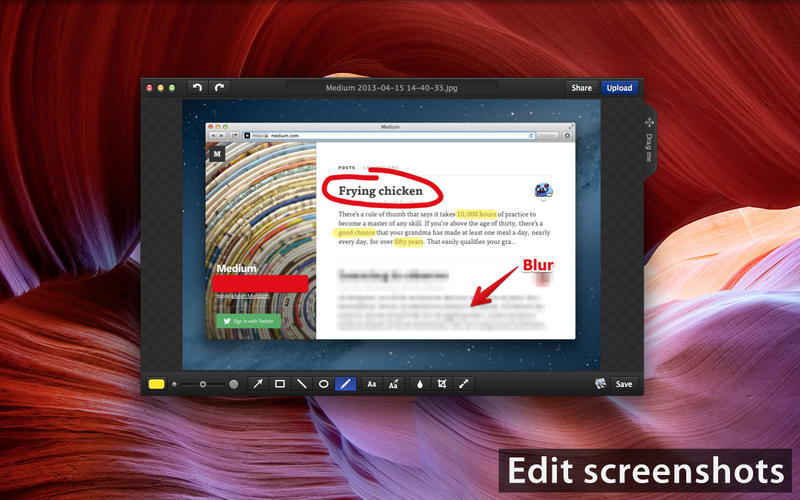
Monosnap combines screenshot creation, screen recording, and cloud integration. It’s often chosen by teams that need to quickly share images and videos.
Flexible saving options, annotation tools, and integration with cloud storage services make Monosnap a convenient tool for documenting processes and remote work. Some features are only available with paid plans.
Kap — A Simple Screen Recording Tool
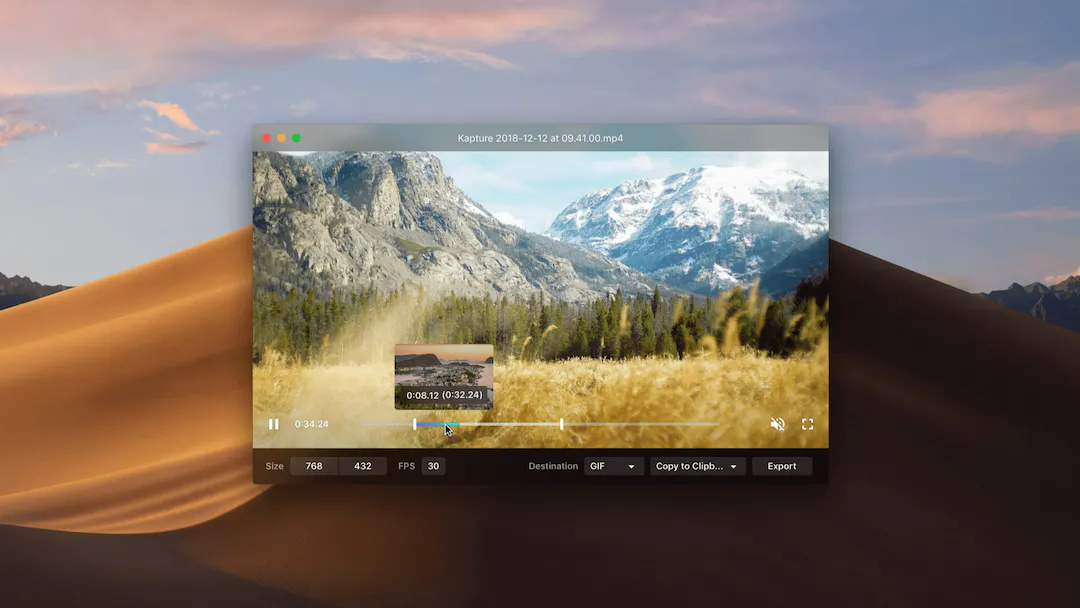
Kap is primarily focused on screen video recording. It’s commonly used to create short demos, tutorials, and animations.
While Kap is less commonly used for static screenshots, it remains a popular lightweight and free solution for screen recording among Mac users.
Conclusion
Choosing a screenshot app for Mac depends directly on your needs. For simple tasks, the built-in macOS tools or Lightshot may be enough. For professional work and complex scenarios, Snagit or Monosnap are better options. If you’re looking for a fast, modern, and user-friendly tool for everyday screenshots with clean editing capabilities, Sleekshot is an excellent choice.


